How to fix audio clipping in a voice or meeting recording

Dylan de Heer

If a recording sounds harsh or crackles on loud words, first check whether the distortion is in the saved file or only in playback. If the file itself is clipped, turning its volume down will make the distortion quieter without restoring the missing detail. Preserve the original, try a short repair on a copy, and verify important words against another source. For the next recording, reduce the level at the stage that is overloading and test with the loudest voice you expect.
This guide is for spoken recordings: interviews, meetings, voice notes and narration. It helps you decide what to check first, when a repair is worth trying, and when an unclear passage needs confirmation from the speaker.
What audio clipping means
Clipping happens when an audio signal exceeds what a part of the recording or playback chain can handle. The resulting distortion can make a loud syllable sound rough, buzzy or broken. A common recording cause is excessive input gain; another is testing with a quiet voice and then recording a much louder performance. Microphone manufacturer LEWITT explains these causes and why level checks need to reflect the real recording.
Three controls are easy to confuse:
Input gain affects the signal before or as it is captured. Where it sits depends on the microphone and interface.
Track or file volume changes the level of audio that has already been recorded.
Listening volume changes what reaches your headphones or speakers.
Changing the last control can help diagnose a playback problem. It does not change the recording. Changing a track slider after capture also cannot undo distortion that was already recorded upstream.
Do not diagnose clipping from the word “crackling” alone. A loose connection, a playback fault, noise processing or a damaged file may produce other kinds of unwanted sound. The useful first question is where the problem appears.
Start with the symptom you can reproduce
Before adjusting anything, note one exact timestamp and describe what happens. “The word at 02:14 breaks up when the speaker raises their voice” is more useful than “the audio is bad”. Then use this sequence.
1. Replay the same passage at a comfortable level
Reduce the listening volume, not the saved file’s level, and replay a few seconds around the problem. Try a second known-working set of headphones or speakers if available.
If the passage sounds clean on the second output, investigate the original playback setup before processing the file. If the same syllable remains distorted across outputs, the recording deserves closer inspection. This is a diagnostic comparison, not proof of a particular hardware fault.
Avoid turning headphones up to compensate for a quiet section. Choose a comfortable level and compare short passages rather than making the whole recording louder.
2. Compare the original with any exported or processed version
Listen to the earliest available recording. If that sounds clean but an edited or exported copy does not, return to the editing chain. Temporarily bypass added processing on a duplicate project and compare the same passage. Change one setting at a time so you can identify which change affects the result.
If both versions contain the same damage, a later export setting is unlikely to explain its origin. Keep looking towards the captured source rather than repeatedly re-exporting the same distorted material.
3. Separate microphone sound from other recorded sound
In a meeting, ask whether only your voice, only a remote participant, or every source is affected. If separate source recordings already exist, compare them. Do not assume a combined recording lets you isolate every speaker afterwards.
A clean local microphone alongside a distorted remote voice suggests a different investigation from distortion across the whole file. Ask the remote participant to check their own setup if that is where the problem appears. Lowering your local microphone gain will not repair their already-distorted contribution.
4. Treat meters and waveforms as supporting evidence
If your recording equipment provides a clip indicator, watch it during a repeatable test. If an audio editor shows flattened peaks, investigate the corresponding passage by listening as well. An image of a waveform alone does not tell you whether every word is usable or which device first overloaded.
Keep the diagnosis narrow: “distortion is present in the saved microphone track at these timestamps” is enough to begin a repair comparison. You do not need to invent a precise cause when the evidence is incomplete.
Preserve the original before attempting a repair
Make an untouched copy of the original recording and keep any repair as a separate file. Use names that distinguish them, such as interview-original and interview-repair-trial-01. Record the affected timestamps, the processing you tried and whether the result was clearer.

Start with a short extract containing the damaged word and enough surrounding speech to judge it. This gives you a manageable comparison before processing an entire meeting. Retain the original timing where possible so your notes still point to the right passage.
Set a concrete success criterion. For an interview, it might be “the speaker’s sentence is easier to understand without new artefacts”. For meeting notes, it might be “the owner and deadline are audible and can be confirmed”. A louder result is not automatically a better one.
If the audio includes confidential discussion, use a tool and storage location permitted for that material. Do not upload the recording to an unfamiliar repair website merely because it promises a quick fix.
When a de-clipping tool may help
De-clipping tools attempt to reconstruct a plausible signal around damaged peaks. That is different from recovering a guaranteed original waveform. Audacity’s Clip Fix documentation says the effect is most likely to help with lightly clipped material and describes its interpolation approach.
For a cautious trial in an audio editor:
Open a working copy and select a short affected passage.
Find the editor’s de-clipping function and read its current instructions.
Apply a conservative trial using the documented controls.
Compare processed and original versions at similar listening loudness.
Keep the trial only if intelligibility improves without introducing distracting changes.
For Audacity specifically, Clip Fix includes a control that reduces amplitude to leave space for reconstructed peaks. Its manual also documents caveats for envelopes and time-stretched clips. Check those before applying the effect to an edited project; a simple duplicate of the source makes comparison easier. This article does not claim hands-on testing of repair software or recommend a universal preset.
Listen beyond the loudest moment. Check the word before the damaged syllable, the word after it, and any quiet speech nearby. A process that makes the peak less abrasive may still leave a name, number or negation unclear.
If a short trial produces no useful improvement, stop escalating the processing simply to make the file appear fixed. Look for a clean backup or ask for clarification. Extensive distortion may leave too little reliable information for a faithful repair.
Recover the meaning without inventing the missing words
An audio repair and a corrected transcript are separate outcomes. Speech recognition can produce a plausible sentence from poor audio; that does not confirm the sentence was spoken.
Suppose a recording contains: “We can send the revised quote by [distorted word].” A transcript supplies “Thursday”. The meeting calendar mentions Thursday too. Neither fact makes the deadline certain. Mark it as unclear, replay the original and any useful repair, then ask the owner to confirm if it remains ambiguous.
Record a later confirmation as a later confirmation: “Deadline confirmed by the owner after the meeting.” Do not silently rewrite the historical record as though the damaged passage had been clear all along.
Prioritise details that change what someone will do: dates, prices, names, quantities, exclusions and words such as “not”, “unless” or “proposed”. If the audio is intelligible but the text is wrong, switch to a transcription-error review rather than treating every wrong word as an audio fault.
Prevent clipping in the next recording
Prevention starts with the real input device and a realistic test. LEWITT’s guidance emphasises setting gain against the loudest expected performance and allowing headroom. For spoken work, adapt that principle to an emphatic sentence or natural laugh, not only a quiet “testing, testing”.
Confirm which microphone the app will use
Check the selected input before changing hardware controls. An app using the laptop microphone will not benefit from turning down an unused USB interface.
In Weeve, Settings → Preferences → Recording includes an Input microphone selector. Choose the intended available input and make a short recording to check the result. This control selects the microphone; it is not a clipping-repair tool or a gain control.
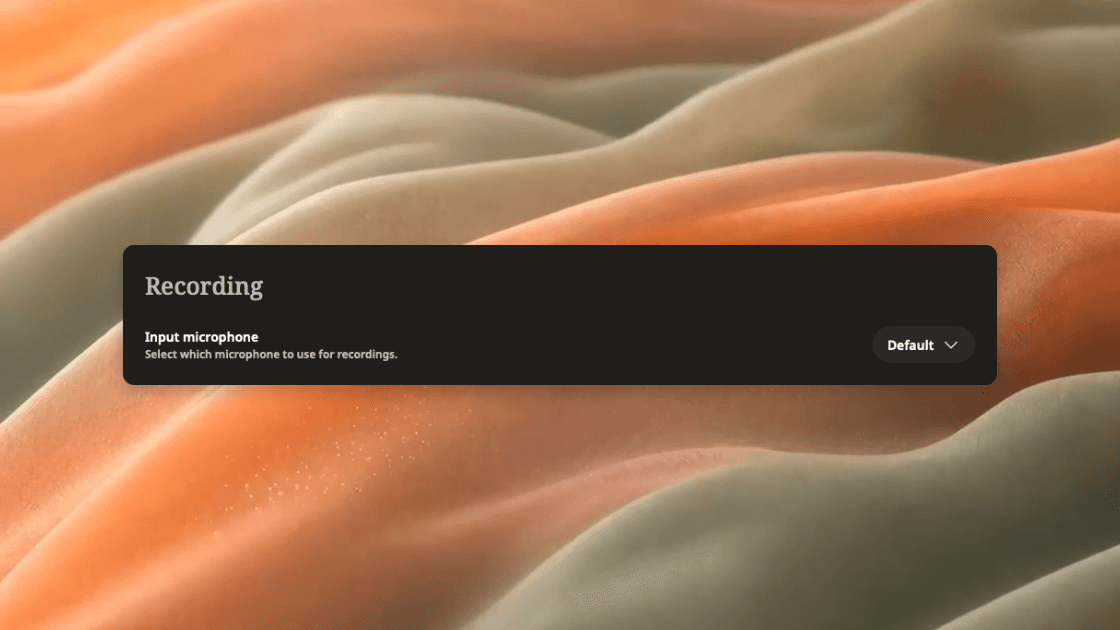
The screenshot shows the actual microphone-selection control. Set input level using the controls your microphone, audio interface or operating system provides, where supported.
Adjust the stage that is overloading
If your interface indicates overload while recording, lower its input gain and repeat the same test. If the original recording is clean and distortion appears only after processing, inspect the later processing stage instead.
Use the device’s own documentation for its meter and gain controls. There is no single percentage setting that means the same thing across different microphones, interfaces and apps. Leave room for louder speech instead of aiming for the largest possible signal.
Test the actual seating and speaking conditions
Use the microphone position and room layout you expect to use. Include the nearest and loudest participant in the test. Then listen to the quietest person as well: reducing level enough to protect one loud speaker is not useful if other voices become impossible to understand.
For an in-person meeting, improve placement or choose a more appropriate capture arrangement before relying on heavy processing later. Our in-person recording guide covers that broader setup work.
Verify the saved file, not only the live indicator
Record a short representative passage, stop, and play the saved recording back. Confirm that loud speech stays clear, quiet speech remains understandable and the intended input was captured. A moving meter establishes activity; listening to the saved result checks what you actually retained.
Repeat this check after changing a microphone, interface, routing arrangement or room setup. Keep the test brief enough to be a routine part of preparation.
When to stop troubleshooting and escalate
Seek device or recording-software support if a fresh test remains distorted across known-working playback outputs after you have confirmed the input and followed the device’s level guidance. Provide the device model, app version, relevant settings and a short non-sensitive sample if permitted. Describe the checks you completed and whether the problem affects the original file or only an export.
For an irreplaceable recording, a qualified audio specialist may be appropriate. Keep the original available and state the purpose of the work: improving listening comfort is a different requirement from establishing the exact words of a disputed statement.
The practical end point is a recording you have listened to and checked, plus an honest account of any remaining uncertainty. When a word is still unclear, preserve that uncertainty in the notes and obtain confirmation before anyone acts on it.

