Mac dictation commands: punctuation, paragraphs and practical examples

Dylan de Heer

With Apple's built-in Mac Dictation, you can speak punctuation and formatting instructions while entering text. Say “comma” to insert a comma, “full stop” to end a sentence, and “new paragraph” to separate ideas. Learn a small set of commands first, then practise them in the app where you actually write.
The important boundary is which dictation system is listening. Apple's Dictation, Apple's Voice Control and third-party tools have different controls and behaviour. An Apple command list is not a compatibility guarantee for every speech-to-text app.
This reference covers Apple's standard Dictation commands, shows how to use them in everyday writing and explains what to check when the result is unexpected. The examples below are practice text, not results from a hands-on benchmark.
Before using the commands, check the active dictation system
For standard macOS Dictation, open System Settings → Keyboard → Dictation. Check that it is enabled, that the language matches what you intend to speak and that the shortcut is one you recognise. Put the insertion point in an editable document, then use the configured shortcut or Edit → Start Dictation. Apple also supports starting it with the Microphone key on keyboards that have one. Apple's Dictation setup guide.
Do not assume that pressing Fn twice is the right shortcut on every Mac. The shortcut can be changed, and keyboard hardware varies. Use the setting shown on your machine.
Voice Control is a separate accessibility feature for controlling the Mac and entering text by voice. When it is enabled, it handles dictation and standard macOS Dictation is unavailable. If you need to navigate, select or edit text using spoken commands, investigate Voice Control rather than expecting the punctuation commands below to provide complete hands-free control. Apple's command reference.
For a third-party app, check its own shortcut and documentation. If two tools share a shortcut, first establish which one starts. Test with harmless practice text before speaking a message into a live conversation or important document.
The punctuation commands worth learning first
These commands are a practical selection from Apple's reference. The wording is what you say while standard Dictation is listening; the result column shows the intended punctuation.
Say | Intended result | Useful when |
|---|---|---|
comma | , | Separating a greeting or items in a sentence |
full stop | . | Ending a statement |
question mark | ? | Ending a direct question |
exclamation mark | ! | Adding an exclamation deliberately |
colon | : | Introducing an explanation or list |
semicolon | ; | Connecting closely related clauses |
hyphen | - | Joining parts of a compound term |
dash | – | Separating an aside |
ellipsis | … | Indicating an intentional trailing pause |
quote / end quote | Opening / closing double quotation marks | Marking quoted wording |
open parenthesis / close parenthesis | ( / ) | Adding a parenthetical detail |
Apple also lists “period”, “point” and “dot” for a full stop. Choose a form that works clearly with your selected language and practise it consistently. Command and feature availability can vary with language and region; consult the current Apple command list if your setup behaves differently.
You do not need to memorise every symbol before dictating. For everyday email, a full stop, comma and question mark cover much of the punctuation. Add quotation marks and brackets when the kind of writing you do requires them.
Line breaks, paragraphs and spacing
Punctuation controls the sentence. Formatting commands control how the reader encounters it.
Say | Intended effect | A practical use |
|---|---|---|
new line | Move to the next line | A greeting, address or short sign-off |
new paragraph | Start a separate paragraph | Moving from context to a request |
no space on | Suppress spaces in the following phrase | A short string that needs joined characters |
no space off | Return to normal spacing | Resume ordinary prose |
numeral | Render the following phrase as a number | A quantity you want written numerically |
These are documented Apple commands. Apple describes “new line” as equivalent to one Return and “new paragraph” as equivalent to two; the line or paragraph may appear when dictation finishes. Their visual appearance also depends on the destination editor. Apple's Dictation guide.
Check the resulting document before concluding that a command failed. A line break in plain text and a new paragraph in a rich-text editor may have different spacing. If the structure is not what you need, use the editor's normal formatting controls rather than repeatedly adding blank lines.
Treat no-space mode as a temporary tool. Resume normal spacing immediately afterwards. For an exact identifier, serial number or account reference, manual entry and checking may be simpler than a long spoken sequence.
Capital letters and common symbols
Apple documents “caps on” and “caps off” for title-style capitalisation, and “all caps on” and “all caps off” for an uppercase phrase. “All caps” applies to the following word. The distinction matters: title case and uppercase are different formatting choices. Apple's command reference.
Use these modes sparingly and end them explicitly. If a heading is short, dictating the wording and adjusting its case afterwards may be easier to review than maintaining a capitalisation mode through several sentences.
For everyday symbols, useful spoken forms include “at sign” for @, “percent sign” for %, “ampersand” for &, “forward slash” for / and “underscore” for _. Apple also documents currency symbols, including “pound sterling sign”, “dollar sign” and “euro sign”. Verify an address or amount character by character before relying on it; a correctly inserted symbol does not prove that the surrounding text was recognised correctly.
For specialist mathematics, uncommon symbols or a longer list of punctuation, use the full Apple reference. A small familiar command set is usually more useful than trying to remember a catalogue you rarely need.
Work through an email example
Open a blank practice note first. Speak this sequence, using the punctuation and formatting words as commands:
Hi Alex comma new paragraph thanks for the update full stop can we review the revised scope on Tuesday question mark new paragraph best comma new line Robin
The intended structure is:
Hi Alex,
Thanks for the update. Can we review the revised scope on Tuesday?
Best,
Robin
Capitalisation and spacing may still need review. The point of this exercise is to discover how your selected language and destination app handle the commands, not to assume that every result will be identical.
Read the text as a recipient would. Is the request a question? Is Tuesday the intended day? Did Alex and Robin remain the correct names? Did the paragraph break divide the greeting, request and sign-off sensibly?
Once the practice note behaves as expected, repeat a short version in your email editor without sending it. Testing in the destination catches differences in focus and formatting before they affect real work.
Dictate a paragraph without losing the meaning
For longer writing, plan the point of the paragraph before you start speaking. Dictate one complete thought, then stop to review it. This is an editorial technique, not a claim that one speech engine requires a particular chunk length.
An illustrative spoken sequence is:
The pilot is ready for review comma but the launch date is not confirmed full stop new paragraph we need the client's approval before inviting the next group full stop
The important review is not merely whether commas appeared. Check that “not confirmed” is still present and that “before” has not changed. Small recognition errors can reverse a sentence even when the formatting looks polished.
Keep names, dates, amounts and qualifications on a separate mental checklist. A paragraph about a proposal should not read as though approval has already happened. If you are dictating from meeting notes, check those details against the original notes rather than correcting from memory.
For a quote, verify both the words and the boundaries of the quotation. Spoken quote commands insert punctuation; they cannot establish that the attributed person used those words.
Manual punctuation or automatic punctuation?
In supported languages, macOS can add commas, full stops and question marks automatically. Apple provides an Auto-punctuation setting under Keyboard → Dictation. Apple's current instructions.
Choose an approach you can review reliably. Automatic punctuation may suit a rough first draft. Spoken punctuation gives you a way to indicate a particular structure. Neither removes the need to read the result.
If punctuation is doubled or placed where you do not expect it, make one controlled change. Use the same short practice sentence with automatic punctuation enabled, then disabled where the option is available. Compare the output. Do not change the microphone, language and dictation app at the same time, because you will no longer know which change mattered.
For an important document, prioritise meaning over speed. It is reasonable to dictate the first version and edit punctuation with the keyboard afterwards. This guide makes no claim that dictation is faster than typing for every person or task.
When a command is written out as ordinary words
Start with the narrowest question: did Dictation hear a command in the system you intended to use?
Check the active tool. Apple's reference applies to standard Mac Dictation. A third-party transcriber may treat the same phrase differently.
Check the language. Use the intended language and region, then try a basic command such as a comma in a blank note.
Check the destination. Confirm that the insertion point is in an editable text area, not a search box, label or other unexpected field.
Test one short sentence. Review the completed result before repeating the command. Some formatting becomes visible after dictation finishes.
Correct the text and narrow the fault. If ordinary speech appears but a particular command does not, investigate that command rather than resetting the entire setup.
If no text appears at all, the problem is broader than this command reference. Follow the separate Mac dictation troubleshooting guide for checks around activation, audio input, permissions and text insertion.
Avoid speaking repeated commands into an unsent message you need to preserve. Move the experiment to a scratch document. If the behaviour remains reproducible, record the macOS version, selected language, app and harmless sample phrase when seeking support.
Where Weeve fits into a dictation workflow
Weeve offers dictation on Mac alongside its recording and transcription workflows. Treat its input method as a separate tool: the Apple command tables above describe Apple's system and are not a promise that Weeve implements the same spoken-command vocabulary.
Whichever tool you choose, the destination still matters. Dictate a short passage into a draft, check that it reached the intended field and review the wording before using it elsewhere.
In Weeve, Keep dictation on the clipboard is an explicit setting for leaving dictated text available to paste again. With the setting off, the app restores the previous clipboard after insertion; with it on, the dictated text replaces that clipboard content. Choose the setting deliberately when working across apps, especially if your clipboard contains something you still need.
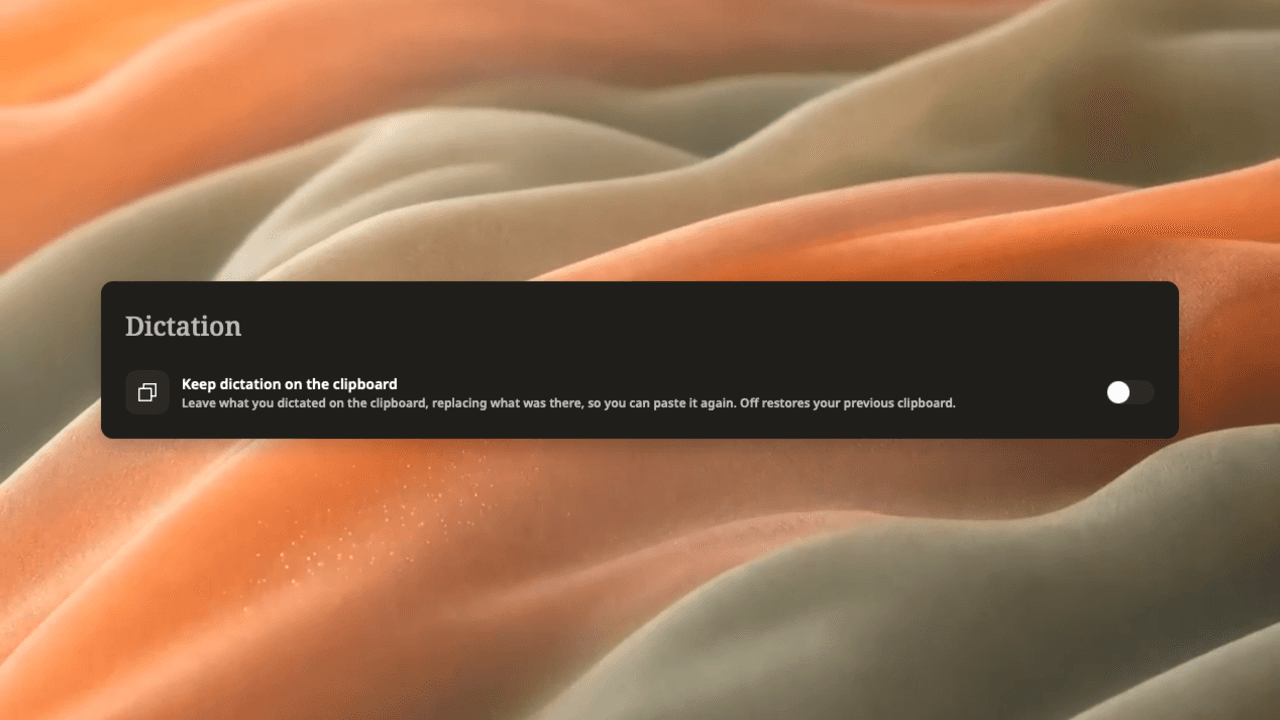
A genuine Weeve settings capture exported with the Mockups renderer. This is Weeve's clipboard setting, not Apple's Dictation settings.
The useful habit is the same in either workflow: establish which tool is listening, practise the controls it actually supports, and review the resulting text in context. Start with a few punctuation commands you use every day, then add more only when they solve a real writing problem.