How to dictate emails in Outlook on Mac, Windows and the web

Dylan de Heer

To dictate an email in Outlook, open a new message or reply, click in the message body and choose Message → Dictate. Wait until the microphone is listening, speak your message, then stop dictation and review the draft. Microsoft documents this workflow for new and classic Outlook on Windows, Outlook for Mac and Outlook on the web. Microsoft’s Outlook dictation guide.
The menu is only the beginning. A useful email also needs the right recipient, an accurate subject, a clear request and a final check of anything you promised. This guide covers the available dictation routes, a complete drafting workflow and the checks to make when the button is missing or the words land in the wrong place.
Choose the right route for your version of Outlook
Outlook’s own Dictate feature and your computer’s dictation feature are separate services. They may both put words into the same email, but their activation, language settings and processing arrangements differ.
Where you write | Start with | What to check |
|---|---|---|
Outlook for Mac | Message → Dictate in a new message or reply | Microsoft 365 sign-in and feature availability; Microsoft lists the Mac feature as subscriber-only |
New Outlook for Windows | Select the message body, then Message → Dictate | Microphone access and a reliable internet connection |
Classic Outlook for Windows | Message → Dictate while signed in to Microsoft 365 | That you are composing a message and using an eligible account |
Outlook on the web | Select the body, then Message → Dictate | The browser’s microphone permission and the account you are signed into |
A Mac text-entry workflow across apps | macOS Dictation or a separate app such as Weeve | Which tool starts, where the cursor is, and whether text reaches the intended field |
These are routes to try, not a claim that every account exposes identical controls. Microsoft’s current help page separates the four Outlook versions. Follow the tab for yours rather than applying a Windows shortcut to a Mac. Version-specific instructions.
If you are looking for a transcript of an existing recording, use a transcription workflow instead. Outlook dictation is for speaking new message text. Playing a meeting into the microphone is not a dependable substitute for importing and reviewing the original recording.
Before dictating an important email
Open a disposable draft and use a harmless sentence first. Confirm that the microphone you intend to use is connected and not muted. If you use Outlook’s Dictate service, keep a reliable internet connection available; Microsoft lists that as a requirement.
Choose the spoken language deliberately. A multilingual workspace, an English interface and the language you speak are not necessarily the same setting. Check the dictation control’s language rather than assuming it follows the email’s spellchecker.
For the first test, use one listening system at a time. Stop any system dictation or third-party session before starting Outlook’s microphone. You should know which control begins capture and which one ends it.
Finally, decide what the email must accomplish. A useful spoken outline is: the reason for writing, the information the reader needs, and the action you want them to take. Keep addresses, account identifiers and intricate URLs for careful manual entry.
Dictate an email with Outlook’s own microphone
1. Open the message and put the cursor in its body
Create a new email or reply to the relevant conversation. Click inside the main writing area and type a few characters to confirm that it is editable. Remove the test characters before continuing.
For a new message, you can leave the recipient field empty until the draft is reviewed. For a reply, inspect the existing recipients and quoted thread before you begin. Dictating into a reply does not change who is included in that conversation.
2. Start Dictate for the correct Outlook version
Select Message → Dictate and wait for the listening state. In Outlook for Mac, Microsoft also documents Option + F1 as a way to start dictation. Use the visible command first if your keyboard or function-key settings make the shortcut uncertain. Outlook for Mac instructions.
On the web, respond to the browser’s microphone permission request for the Outlook session you intentionally opened. If a managed browser or work account prevents access, record the message shown and ask the administrator about that restriction.
The expected result is a listening control followed by text in the message body. If there is no listening state, solve activation first. If it listens but produces no words, move to the microphone checks below.
3. Speak one paragraph at a time
Start with one complete thought. For example, a fictional project update might begin: “Thanks for the discussion today. We can prepare the first draft once the revised brief is approved.”
Pause the microphone before deciding what to say next. In new Outlook for Windows and Outlook on the web, Microsoft documents a floating microphone control for pausing and resuming. It also documents settings for the spoken language, input device and automatic punctuation. Microsoft’s Dictate controls.
Short sections make review more manageable: opening, explanation, request and closing. This is a drafting technique, not a measured speed or accuracy claim. If you lose the thread, stop listening and write a few keywords before continuing.
4. Add punctuation without treating every spoken phrase as a command
Microsoft’s English command reference includes “comma”, “full stop”, “question mark” and “new line”. Try a small set in the disposable draft before relying on it in a client message. Command support can differ across languages and Outlook versions. Supported spoken commands.
You can also add punctuation with the keyboard after stopping the microphone. That is often simpler for a short email containing a reference number, a web address or several names. Speaking an email does not require speaking every editing operation.
5. Stop listening, then finish the email
Stop or pause Dictate using its control before reading the message aloud or discussing it with someone nearby. Confirm that the listening indicator is no longer active. Review the body, enter a concise subject and inspect the recipient list.
Attach any promised file and open it to confirm that it is the right version. A sentence saying “I have attached the revised proposal” does not establish that the attachment is present. Sending remains a separate deliberate action after these checks.
Using macOS Dictation in Outlook
On a Mac, Apple’s built-in Dictation provides another way to enter text. Enable it in System Settings → Keyboard → Dictation, inspect its language and microphone settings, then place the insertion point in the Outlook message body. Start with the configured shortcut or Edit → Start Dictation, where available. Apple’s Dictation guide.
Test one sentence before drafting a whole email. When you finish, stop Dictation with the control or shortcut described by Apple and check the result in Outlook. Do not assume that the keyboard shortcut is the same on every Mac: it can be customised.
Apple’s standard Dictation and Voice Control also differ. When Voice Control is enabled, it handles dictation and standard macOS Dictation is unavailable. If you already rely on Voice Control, use its workflow rather than disabling an accessibility feature just to follow a generic tutorial. Our Mac dictation commands guide explains the distinction in more detail.
Using Weeve when your writing moves between apps
Weeve offers a separate Mac dictation workflow that transcribes a spoken segment and inserts the result into the active text field. For Outlook, open a draft, click in the body, use the dictation shortcut configured in Weeve, speak a short segment and stop to insert it. Confirm the destination with a harmless sentence first. This is text entry into the editor, not an Outlook integration that manages recipients or sends email.
If you deliberately want to paste the same dictated passage again, Weeve has a Keep dictation on the clipboard preference. With it off, Weeve restores the previous clipboard after insertion; with it on, the dictated text remains available for another paste. The current implementation and setting are reflected in the Weeve dictation troubleshooting guide.
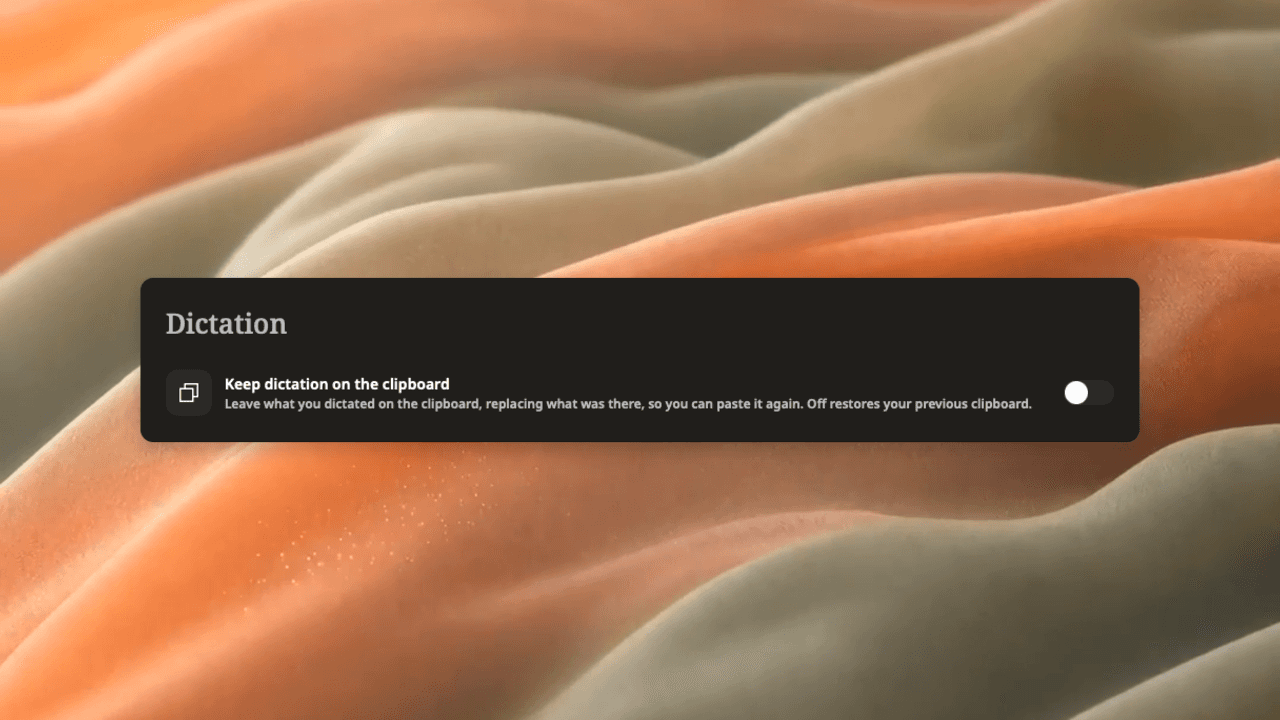
Weeve’s clipboard setting, shown in a genuine app capture. It is separate from Outlook’s Dictate controls.
Keep the Outlook body focused while dictating. If you move to the subject, a search field or another application, check the cursor before speaking again. A successful test in one editor does not guarantee identical insertion behaviour in every field.
Turn spoken thoughts into a clear email
Consider this fictional first draft:
Hi Morgan, just following up on the discussion, I think we said we could probably start next week but that depends on the brief and also the access, so could you send those over and then we can confirm?
The recogniser may have captured those words correctly, yet the reader still has to infer the request. An edited version could be:
Hi Morgan,
Please send the approved brief and confirm that the project access is ready. Once we have both, we can confirm the start date.
Would you be able to send an update by Thursday?
The edit separates the dependency from the requested response. It avoids converting a possible start next week into a firm commitment. The Thursday request is an example of wording the writer must choose and verify, not a fact inferred from a recording.

Use two review passes. First check meaning: the request, dependencies, promises and tone. Then check details: names, dates, amounts, negation, recipients and attachments. If the email follows a meeting, compare commitments with the original notes or recording rather than relying on a smooth-sounding draft. The meeting follow-up email guide covers that evidence-to-message step.
When Outlook dictation does not work
The Dictate button is missing
Confirm which Outlook version and account you are using, open a new message and check the Message tab. For Outlook for Mac, Microsoft’s current help explicitly identifies Dictate as a Microsoft 365 subscriber feature. Do not assume a missing button is a microphone failure, or infer that the same subscription rule applies identically to every Outlook route. Microsoft’s availability guidance.
Check the current instructions for your version and ask your work administrator about account or feature restrictions when appropriate. The resolution is a visible, working Dictate control in that version, or a consciously chosen alternative such as macOS Dictation.
The microphone starts but no words appear
Check the physical mute switch, selected input and whether the microphone responds in the computer’s sound settings. In a browser, check the site’s microphone permission. Stop other active listening sessions, then repeat the same neutral sentence in a fresh Outlook draft.
Microsoft recommends checking microphone access, input level, background noise and internet reliability. Change one thing at a time so you can identify which adjustment helped. Microsoft’s microphone troubleshooting.
The words appear, but names or sentences are wrong
Confirm the spoken language and microphone position, then try a quieter setting. Correct unfamiliar names and references manually. Pay particular attention to “can” versus “cannot”, amounts and conditional wording. A plausible sentence is not necessarily the sentence you intended.
Dictation works elsewhere but not in this email
Stop listening, clear any accidental selection and click into an empty paragraph in the message body. Test again with the same dictation tool. If the problem persists, record the Outlook version, browser if relevant, dictation service and exact failing step. Keep confidential message contents out of a support report. For failures across Mac apps, use the separate Mac dictation diagnostic guide.
Does dictating locally make the email local?
No. Speech recognition and email storage are different parts of the workflow. Microsoft describes Outlook Dictate as an internet-connected service. Apple advises checking the text beneath Dictation in Keyboard settings to establish whether general text dictation is processed on your device. Microsoft, Apple.
Even when you enter text through an on-device tool, putting it into an Outlook draft brings the email account’s own storage and synchronisation arrangements into play. Choose both the input method and the destination deliberately for confidential work.
For your first real message, aim for a short reviewed draft: one purpose, the necessary context and one clear request. Once the start, insertion and stop behaviour is dependable, use dictation for longer replies while keeping the same final review.

