Dictation vs typing: choose by the work, not words per minute

Dylan de Heer

Dictation is worth trying when you can explain an idea aloud and want a first draft. Typing is often the more practical choice when you need exact wording, frequent revisions or a quiet way to work. You can also dictate a paragraph, stop, and edit it with the keyboard. The useful comparison is the time and effort needed to reach a usable piece of writing, including corrections.
That distinction matters if you are choosing a daily writing habit rather than demonstrating how quickly text can appear on a screen. A fluent spoken paragraph may need substantial restructuring. A slower typed paragraph may already be ready to send. Equally, staring at an empty document can be the slowest part of writing, and speaking through the point may help you get started.
This guide compares the two approaches across drafting, editing, accuracy, working environment and privacy. It includes a small comparison you can run on your own work. It does not claim that one method is universally faster or that the examples below are benchmark results.
What are you actually comparing?
Here, dictation means speaking new text into a document or text field. Typing means entering and revising that text with a keyboard. Transcribing a meeting recording is a different task: the conversation has already happened, and the aim is to represent what was said rather than compose a new message.
Voice control is also a separate capability. Apple distinguishes ordinary Dictation from Voice Control, which lets you operate the Mac with spoken commands as well as enter text. Availability and features vary by language and region. Do not assume that a dictation tool can also select menus, format a complex document or control every application. Apple's Dictation guide explains that boundary.
Before comparing tools, name the job: a short reply, a long first draft, an exact quotation, a technical instruction or a final edit. Those jobs impose different demands on the input method.
Compare the complete writing process
Getting the first version down
Try dictation when the idea is clear enough to explain to another person. A project update, a reflection after a conversation or the first version of an email can be a useful starting point. Speak one point at a time, then stop to inspect the result.
Try typing when your thinking depends on seeing alternatives beside one another. If you are rearranging a sentence as you form it, switching between source material and a draft, or writing a compact instruction where every word matters, the keyboard gives you direct control over that process.
Neither choice solves an unclear argument. If you cannot say what the paragraph needs to do, write a one-line purpose first: “Explain why the release moved and what the reader should do next.” Then choose how to produce it.
Revision and precision
Dictation gives you text that still needs inspection. Check names, numbers, negatives, punctuation and any term that would change the meaning if recognised incorrectly. A sentence can look grammatically plausible and still say something you did not intend.
For a few local corrections, typing is a straightforward option: select the exact span, replace it and read the sentence again. For a whole paragraph that needs a different argument, it may be easier to dictate a new version than repeatedly patch the old one. This is a workflow choice to test, not a rule that every writer will prefer.
Keep formatting separate from composition when it interrupts your train of thought. You can draft the content first and add headings, links and layout afterwards. If you want a reference for the built-in Mac feature, see our Mac dictation commands guide; commands supported by one tool should not be assumed to work in another.
Environment and concentration
A shared office, train or café changes the decision. Speaking an unfinished message aloud may be distracting or inappropriate, even if recognition works. Typing lets you work without saying the content to everyone nearby.
At a desk where speaking is comfortable, dictation may fit naturally. Check the actual input device before drawing conclusions about recognition quality. A selected laptop microphone across the room is a different setup from the microphone you thought you were using.
Also consider your own concentration. Some writers like hearing an argument as they build it; others find it easier to think through visible text. Treat that as useful evidence about your workflow rather than a weakness to overcome.
Accuracy and review effort
Do not compare an unedited dictated draft with a finished typed document. Apply the same acceptance standard to both. For an email, that might mean the intended recipient can understand the request, the relevant date is correct and no accidental instruction remains. For a longer document, it also includes structure and references.
Keep recognition mistakes separate from writing decisions. If the tool wrote a different name, that is a transcription correction. If you spoke three repetitive sentences and later combined them, that is editing. Both consume time, but they suggest different improvements.
Is dictation faster than typing?
The answer for your work depends on the full cycle:
Time to a usable draft = preparation + text entry + correction + revision + final check.
Words per minute describes only part of that cycle. It also misses whether the words are useful. A long dictated passage that you discard has not advanced the document merely because it arrived quickly.
Consider a fictional comparison. One writer spends two minutes preparing, four dictating and six correcting and restructuring: twelve minutes in total. A typed version takes two minutes to prepare, seven to enter and two to review: eleven minutes. In that example typing wins, despite slower initial entry. If the dictated version needed only two minutes of editing, the result would reverse. These are illustrative numbers, not measured results or typical performance claims.
For a fair personal comparison, use two similar tasks rather than dictating a paragraph you have just perfected by typing. Knowing the answer already gives the second attempt an advantage. Swap the order on another occasion, and record unusual interruptions rather than treating them as an input-method failure.
Run a useful comparison on your own writing
Choose a low-stakes task with a clear finish line, such as a short internal update. Use content you are allowed to enter into the applications involved. Avoid testing with a message that could be sent accidentally.
Define “done”. Write down the reader, purpose and checks the finished text must pass. For example: three points, one clear request, correct names and a verified deadline.
Prepare equally. Give each method the same outline or source notes. Do not compare spontaneous speech against a fully planned typed answer.
Record the stages. Note preparation, entry and editing time separately. Also note whether you had to repair punctuation, names, structure or formatting.
Review the content. Read both results against the acceptance checks. A faster draft with a wrong date does not pass.
Repeat with another task. Include a short precise reply as well as an explanatory paragraph. The same method need not win both.
Choose a default and an exception. “Dictate explanatory first drafts; type final edits and short replies” is more actionable than “I should use voice more.”
Do not turn a handful of personal examples into a productivity percentage for a whole team. They can still answer the useful local question: which method should you reach for next time you do this particular job?
A practical hybrid workflow on a Mac
Start by putting the cursor in the intended document. Say the purpose of the next paragraph to yourself, then dictate the paragraph. Stop input before moving to another field or switching tasks. Inspect the text, make precise corrections with the keyboard, and continue only when the previous section is in a reasonable state.
For Apple's built-in feature, the current guide documents starting Dictation from a shortcut or Edit menu and stopping it with the corresponding controls. It also documents keyboard use while dictating on Apple silicon. Your own app may behave differently, so learn its start, stop and insertion behaviour before relying on a mixed workflow. See Apple's instructions.
In Weeve, the dictation path transcribes the spoken input and inserts the resulting text into the active field. It is separate from the saved meeting-recording workflow. This makes it useful for composing a paragraph where you are already writing, but it does not remove the need to check the destination, the words or the final message.
Weeve also has a Keep dictation on the clipboard preference. With it enabled, dictated text remains available for another paste; with it disabled, the paste workflow restores the previous clipboard contents. Decide which behaviour suits the task before dictating sensitive text, and consider any clipboard manager you use.
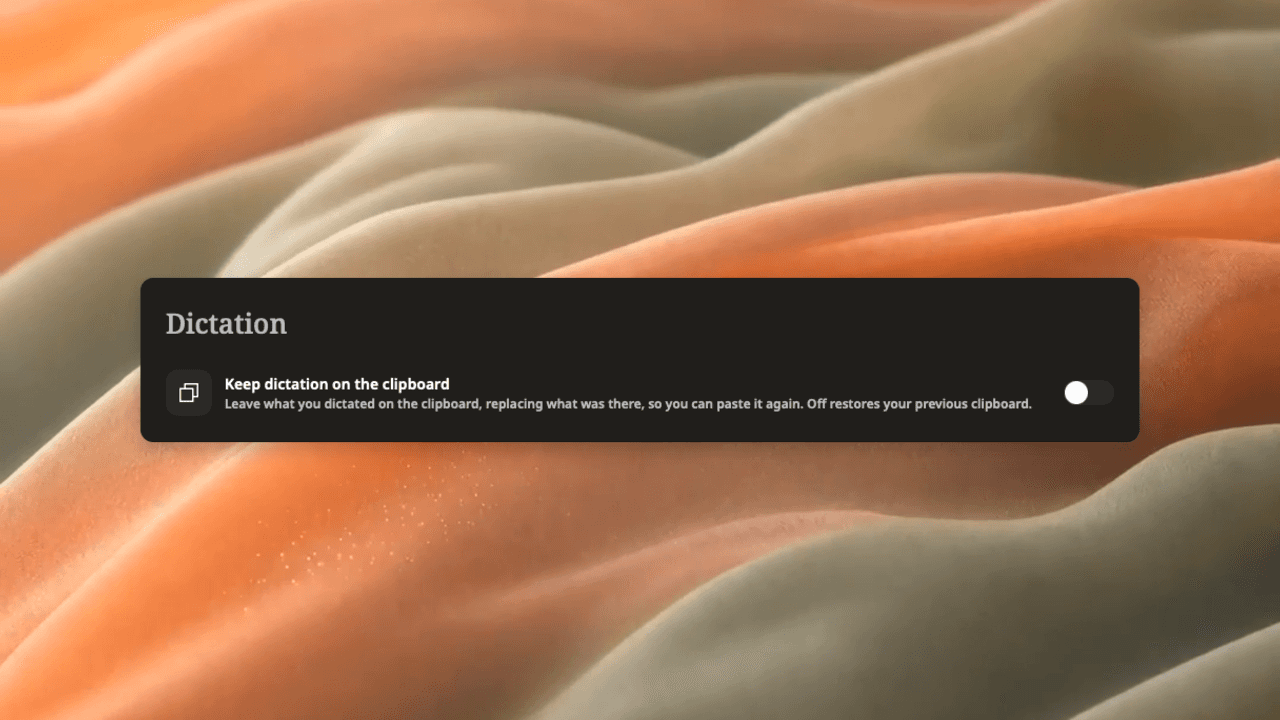
The screenshot shows the clipboard preference, not a live dictation session or a measured speed test. For a problem where the built-in feature fails to start or capture speech, use the separate Mac dictation troubleshooting guide.
Privacy follows the whole route
Separate three questions: where speech is processed, where the resulting text is inserted, and where copies are retained. Local speech recognition does not make a cloud document local. Likewise, a private document can still be spoken aloud in a room where others can hear it.
Apple directs users to the wording under Dictation in Keyboard settings to check the processing status for their configuration. Do not infer it solely from the fact that the feature is built into macOS. Apple documents the setting and its privacy information.
Weeve's dictation uses its local speech-recognition path. A destination app, clipboard utility or optional external AI integration has its own data handling. Check that route separately before choosing it for sensitive material. This is a practical selection criterion alongside convenience and correction effort.
Which method should you choose?
Use these as starting hypotheses for your own comparison:
An explanatory first draft: try dictation, then edit. It suits a task you can describe aloud without constantly consulting exact text.
A short, precise reply: start with typing. Setup and review may be a larger part of the task than entry itself.
A passage with many names, identifiers or exact quotations: favour the method that makes verification easiest. Copy verified source text where appropriate instead of recreating it from memory.
A long document: consider dictating sections from an outline, with separate structural and line-editing passes.
A shared or public space: consider whether speaking the content is appropriate before evaluating recognition speed.
An established accessibility workflow: evaluate the controls and editing support you actually need, including whether full Voice Control is relevant, rather than reducing the decision to typing speed.
You do not need to replace the keyboard to get value from dictation. Choose one recurring task, compare complete finished drafts, and keep the combination that makes that work easier to produce and check.