How to use Google Docs voice typing on a Mac

Dylan de Heer

To use voice typing in Google Docs on a Mac, open an editable document, choose Tools → Voice typing, select your language and start the microphone. Speak a short paragraph, stop listening and check the result before drafting anything longer. Google currently lists the latest versions of Chrome, Edge and Safari as supported browsers. Google Docs voice typing help
The more useful question is what happens after those first words appear. You need a reliable way to start and stop, separate spoken punctuation from ordinary words, correct mistakes and avoid losing your place. This guide takes you from a short microphone check to a reviewed document, with a diagnosis path when the feature does not behave as expected.
Choose the voice-typing system you intend to use
Google Docs voice typing is a feature inside the document editor. Start it from the Tools menu so you can see which microphone control is active. A Mac dictation shortcut may start a different speech-to-text system; hearing a sound or seeing a system indicator does not tell you that Docs voice typing is running.
For your first attempt, use one system at a time. If you normally dictate with a Mac app, stop that session before starting the Docs microphone. This makes it easier to identify which system heard your words and which control stops it.
Choose according to the task:
Drafting directly in a Google document: begin with Docs voice typing and its own language and editing controls.
Writing across several applications: consider a separate dictation workflow, then verify insertion in each destination.
Turning an existing meeting into a transcript: use a recording or file-transcription workflow. Speaking into a document and processing a saved recording are different tasks.
If the system dictation shortcut itself fails, our Mac dictation troubleshooting guide covers that separate starting point. Keep the two diagnoses distinct rather than changing every speech setting at once.
Before you start
Use a document you can edit and a browser version supported by Google. Choose a quiet place, connect the microphone you intend to use and open a blank paragraph for the test. Keep any unrelated audio stopped while you establish the baseline.
For work or school accounts, feature availability may be controlled by an administrator. Google explicitly notes that an organisation can disable voice typing. A missing menu item therefore does not automatically mean your microphone is broken. Google Docs help
Prepare a sentence that contains no confidential information. For example: “The draft needs a clearer introduction and a shorter conclusion.” A disposable sentence lets you test recognition and correction without introducing accidental edits into a shared working document.
Before a longer session, also decide what you are trying to produce. A rough paragraph, an outline and a final client response require different amounts of review. Dictation is a way to enter text; it does not remove the need to check the argument, facts or recipients.
Start with a short, controlled dictation test
1. Open the microphone control
Place the cursor in the document body and open Tools → Voice typing. Check the language shown in the microphone box. Select the language you will actually speak, including the appropriate English variant where available. Google lists both English (UK) and English (Canada) among the supported choices. Language and setup reference
If the browser asks for microphone access, read the request and allow access for the document service you are intentionally using. An organisation-managed device may require help from its administrator rather than a change you can make yourself.
2. Dictate one complete thought
Start the Docs microphone, speak the test sentence at a normal pace and stop it. Do not begin with a long monologue. The expected result is a recognisable sentence inserted at the cursor, with no unrelated application also capturing your dictation.
Check the beginning and end of the sentence as well as its middle. Missing opening words can be easy to overlook when the rest looks plausible. If you are using a headset, confirm that its microphone, rather than a distant built-in microphone, is the input you intended.
3. Test one correction
Change a word with the keyboard, move the cursor back to the end and dictate another sentence. You now know whether you can move between speech and manual editing without placing new words in the wrong paragraph.
Google allows corrections while the microphone remains active. For a first session, stopping it during review is a useful working habit: it prevents a spoken aside from becoming document text and gives you a clear separation between drafting and editing. Correction behaviour
4. Confirm the stop behaviour
After stopping the microphone, say an unrelated test phrase and confirm that no new text appears. Delete the test content once you are satisfied. You are ready for a real paragraph when start, insertion, correction and stop all behave predictably.
Dictate paragraphs, then edit their meaning
An outline makes spoken drafting easier to review. Write the section headings first, then dictate one idea beneath each heading. You can leave awkward wording in place temporarily without forgetting what the whole document is supposed to explain.
For a project update, try this sequence:
Type headings for progress, problems and the next decision.
Dictate a short paragraph describing what changed.
Stop and check names, dates, amounts and negation words such as “not”.
Remove repeated introductions and spoken detours.
Continue with the next heading only when the paragraph says what you intended.
Consider a fictional draft that reads: “We can deliver on Friday if the review is done on Thursday.” Changing “if” to “and” makes the sentence sound confident while losing the dependency. Recognition review is partly about these small relationships, not just spelling.
For a shared document, check the destination and sharing context before dictating sensitive material. The fact that you entered text by voice does not change who can read the document once it is there.
Use punctuation and editing commands selectively
Google documents spoken punctuation such as “comma”, “period”, “question mark”, “new line” and “new paragraph”. Availability varies by language. Voice editing commands are English-only, and Google says both the account language and document language must be English for those commands. Punctuation and command reference
Learn a small set that serves your writing. Paragraph breaks and a way to select a paragraph are often more useful at first than memorising every formatting command. Test commands in the disposable document before using them in an important draft.
If a command is inserted as ordinary text, stop and inspect the result. Check the language conditions, pause around the command and try again in a short test. Do not keep repeating a destructive command while unsure whether it has been recognised.
Keyboard editing is still useful. Use speech for the sentence you want to express and the keyboard for a precise reference, unfamiliar name or carefully formatted URL. There is no need to force every operation through voice control to benefit from dictation.
When Google Docs voice typing does not work
Diagnose the first failing stage. A missing menu, an unavailable microphone and an incorrect word are different symptoms.
The Voice typing option is missing
First confirm you are in an editable Google document using a currently supported browser. Update an old browser before assuming the feature is unavailable on your Mac. On a managed account, ask whether the administrator has disabled it. Use Google's current support page as the reference rather than an old guide that restricts the feature to Chrome.
The resolution check is simple: the Tools menu exposes Voice typing and opens its microphone box. If it still does not, record the browser version, account type and the menu you see for your administrator or Google support. Repeated microphone changes will not fix a menu-level restriction.
The microphone starts but no words appear
Check which input is selected, whether its input level responds to speech and whether the browser has the microphone access it requested. Check for a physical mute switch before changing software settings. Then repeat the disposable sentence with the Docs microphone visibly active.
Google's troubleshooting advice includes checking microphone settings and connection, reducing background noise and checking whether another application is using the microphone. Work through those checks one at a time so you can tell which change helps. Microphone troubleshooting
If the microphone does not respond anywhere, investigate the device or system input first. If it works elsewhere but not in Docs, focus on the browser, its permission state and the document session. Avoid resetting unrelated system settings merely because one website is failing.
Words appear, but they are wrong
Check the selected language, distance from the microphone and background sound. Try the same short sentence after each change. If ordinary words improve but a specialist name remains wrong, correct that name manually and continue reviewing it in the finished draft.
A clean short test does not prove that every paragraph will be accurate. Review numbers, proper nouns and words that reverse the meaning throughout the document. For important wording, compare the result with what you intended to say while it is still fresh.
New words land in the wrong place
Stop listening, find the cursor and clear any unintended selection. Put the cursor in a blank paragraph and restart. After correcting earlier text, deliberately return to the drafting position before speaking again.
If the same problem recurs, note whether it happens only after a selection, command or switch between apps. That detail is more useful for troubleshooting than a general report that “dictation is broken”.
When a separate dictation app is useful
If your writing moves between a document, email and other text fields, a Mac dictation app offers another workflow. Weeve's dictation flow transcribes the spoken segment and inserts the result into the active text field. Check the destination with a harmless sentence first; editor behaviour and focus still matter.
Weeve also has a Keep dictation on the clipboard preference. Enable it when you deliberately want to paste the same dictated text again. With it disabled, Weeve restores the previous clipboard after its insertion flow. This is a choice about repeat pasting, not a Google Docs voice-typing setting.
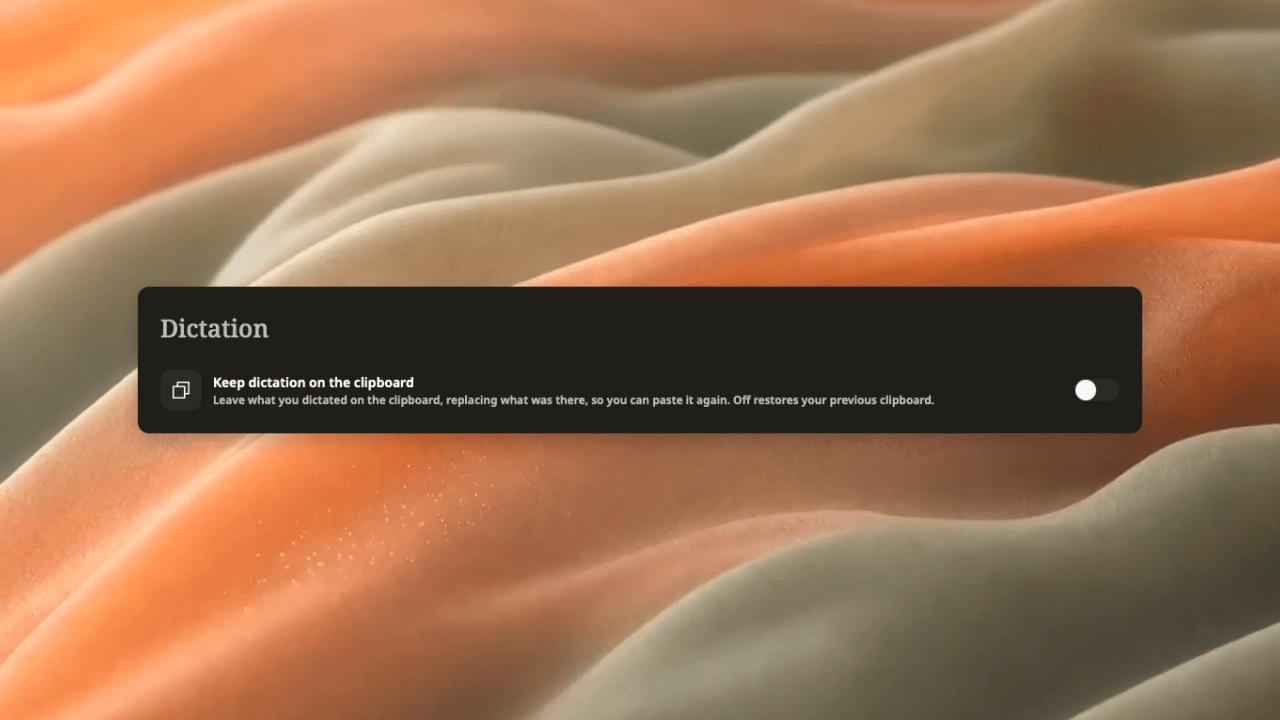
The image shows Weeve's setting, not the Google Docs interface. Use one dictation system at a time and check the inserted text before moving to a different field. Our Mac dictation commands guide explains the distinction between entering speech and broader voice commands.
Is Google Docs voice typing an offline workflow?
Do not assume that a microphone feature running on your Mac means speech processing stays on that Mac. Google says the browser controls the speech-to-text service, determines how speech is processed and sends the resulting text to Docs. Its help page does not establish an offline-only guarantee. Google's processing explanation
Likewise, entering text through a local dictation app does not make the destination document local. If you insert text into a cloud document, that document's storage, account and sharing arrangements still apply. For confidential work, choose the speech workflow and the document destination together.
Finish with a document review
Before sharing, stop all listening controls and read the document without speaking. Check factual details, sentence meaning, headings, accidental commands and repeated phrases. Confirm that the last paragraph is complete and that the document is shared with the intended audience.
Start with one useful paragraph today. Once the microphone, cursor and correction loop are dependable, expand to longer sections. A successful voice-typing workflow ends with a document you have reviewed, not merely a screen full of recognised words.

