How to fix microphone echo in calls and recordings

Dylan de Heer

To fix microphone echo, first identify where the repeated sound appears: in your own headphones, in what another caller hears, or in the saved recording. Then isolate one audio route at a time. Start with headphones, one device connected to meeting audio, and one intended microphone. Make a short test after each change, including playback of the saved file if you are recording.
“Echo” can describe several different problems. A voice returning through a colleague’s loudspeakers needs a different fix from hearing your own microphone through monitoring software. A recording with two copies of the same source is different again. Changing every audio setting at once makes it harder to learn which route caused the problem.
This guide focuses on spoken calls, interviews and recordings, with a practical Mac recording check. It covers diagnosis and prevention before discussing the limits of repairing an existing file.
Start by describing what you hear
Ask the other person what they hear as well as listening yourself. Do not assume the person hearing the echo is the person whose equipment creates it. A voice can travel out to another participant’s speakers and return through their microphone.
Use this quick symptom guide:
You hear your own words returning after a delay during a call. Check the other participants’ playback-to-microphone paths and whether you joined the call twice.
You hear yourself even before joining a call. Check local microphone monitoring, an audio interface’s direct-monitor function, and any recording or streaming software that plays input back to output.
Other people hear their own voices when your microphone is open. Test whether your microphone is picking up your loudspeakers. Switching your playback to headphones is a useful first check.
The live call sounds clean, but the saved file contains doubled speech. Investigate duplicate capture routes, overlapping tracks and the recorder’s selected sources.
Speech has a roomy tail rather than a separate repeated phrase. Consider room reflections and microphone position. That is not necessarily an electronic loop.
A sustained whistle or howl grows louder. Reduce or mute the output immediately. Feedback deserves a different response from quietly repeated speech; do not keep raising the volume to test it.
These symptoms narrow the investigation; none proves a particular cause on its own. Write down the app, input device, output device, other open audio apps and whether the issue occurs live, in playback or both.
1. Establish a simple baseline
Before an important call, run a brief test using the simplest setup you can reasonably reproduce. Connect one microphone, use headphones for playback and join meeting audio on one device. Close unused call tabs and stop unnecessary audio monitoring in other apps. Keep the original recording if one already exists.
Have each person speak a short sentence separately. Then exchange a few normal replies. If you need a recording, save the test, stop capture and listen to the actual file. A moving input meter proves that a signal reaches something; it does not prove that the final file contains clean speech from everyone.
If this baseline works, reintroduce optional parts one at a time: a room speaker, a second display’s audio, an audio interface or a more complicated recording route. Test after each addition. The first change that brings the symptom back is a useful lead, not an automatic verdict that the added device is faulty.
If the baseline still fails, continue with the branch that matches the symptom. Avoid reinstalling drivers, resetting all sound preferences or buying a new microphone before you have isolated the path.
2. Break the loudspeaker-to-microphone path
A microphone can capture the sound playing from nearby speakers and send it back into a call. Dialpad’s explanation of microphone echo identifies speaker pickup, excessive playback volume and incorrect audio-device selection as things to check. Its guidance also suggests headphones as an alternative to speaker playback. Dialpad’s microphone-echo guide
Switch the suspected participant’s output to headphones and repeat the same short exchange. If the repeated voice disappears, you have evidence that the playback route matters. You have not established that every microphone setting is correct, or that the saved recording is clean, so test those separately.
If speakers are necessary, lower their volume to a comfortable level, increase separation from the microphone where practical, and use the meeting app’s normal speech-processing mode. Check the app’s own current audio guidance before changing specialist music or original-sound options. Settings intended to preserve instruments may behave differently from settings intended for ordinary conversation.
Do not try to solve the problem by reducing microphone input until your own voice becomes inaudible. The aim is to capture the intended speaker clearly while avoiding recapture of playback. A distant microphone that requires more gain can make that trade-off difficult.
For a shared meeting room, use a deliberate room-audio arrangement. Several laptops independently playing the same remote voices can make the source of a return path hard to locate. Keep screen-sharing devices disconnected from meeting audio when they do not need their own microphone and speakers.
3. Check whether you joined the meeting twice
A laptop and phone can both be useful during a call, but two active audio connections in the same place create extra routes. The second device may still be playing remote voices even when its microphone is muted.
Disconnect meeting audio on the extra device, rather than relying only on its microphone mute. Keep one intended audio endpoint active and repeat the test. If the second device is needed for another purpose, use it without meeting audio where the app supports that arrangement.
In a group call, isolate participants methodically and politely. With everyone’s agreement, mute one suspected microphone at a time while another person speaks. Note whether the repeated sound disappears. If it does, investigate that participant’s audio route. Do not equate the test with blame: the cause may be a room setup, an unexpected output device or a second connection.
If nobody can identify the path during a time-critical meeting, use a known-working simpler arrangement for the remainder of the call and troubleshoot afterwards. Preserve the useful conversation instead of turning the meeting into an unplanned equipment experiment.
4. Separate local monitoring from call echo
Some setups intentionally let you hear your own microphone. A headset may provide sidetone; an audio interface may offer direct monitoring; a recording app may play the input through software. These features are not automatically faults.
The question is whether you are hearing one intended monitor path, a noticeably delayed path, or two paths at once. Test outside the call first. Speak with the meeting app disconnected and check whether your voice is still being played back.
Inspect the monitoring controls in the software and hardware you actually use. Disable an unnecessary monitor path, then test again. Avoid changing several unrelated controls together. If disabling software monitoring removes a delayed copy while direct monitoring remains, you have narrowed the problem to that extra path.
Dell’s support guidance describes how microphone input played back through speakers can create a feedback or echo path. Its specific control-panel instructions are for the listed computer setups; use the equivalent monitoring controls for your actual app and hardware rather than applying Windows steps to a Mac. Dell audio-feedback guidance
Keep an important distinction in mind: what you hear while recording is not necessarily what the recorder saves. A monitoring problem may be absent from the file. Conversely, a file may contain duplicated audio even if your listening setup hides it. Always replay the saved test before declaring the recording workflow fixed.
5. Investigate echo that exists only in the recording
If the live conversation is clean, compare the original saved file with any edited or exported version. Listen through one normal player at a comfortable level, with the recorder stopped. If only the edited version is doubled, investigate the edit or export rather than changing the microphone.
In an editor, check whether the same recording appears on overlapping tracks. In a more complex capture setup, check whether an app’s sound reaches the recorder directly and also through another mixed or virtual input. Do not delete tracks as a first step: temporarily mute one on a copy and compare.
A microphone recording loudspeaker playback can also add a second version of remote speech beside a direct system-audio capture. Headphones are a useful diagnostic here, but you still need the recorder’s intended source configuration. A clean microphone-only test does not prove that the full meeting setup captures both sides correctly.
For a fictional example, imagine a call that sounds fine in headphones, but the exported recording contains every remote sentence twice. If the recorder has a direct app-audio source plus an imported duplicate track, changing microphone sensitivity will not remove the second track. Comparing the earliest file with the export helps locate the stage where duplication was introduced.
If the problem is missing audio rather than repeated audio, use the separate Mac screen-recording sound guide. If loud syllables sound broken or harsh, the audio-clipping guide follows a different diagnostic path.
6. Check the microphone selected for your Weeve recording
In Weeve, open Settings and find Preferences → Recording → Input microphone. Confirm that the selected device is the one you intend to use. The setting selects the recording microphone; it is not a control that fixes another caller’s loudspeaker arrangement or repairs echo already present in a file.
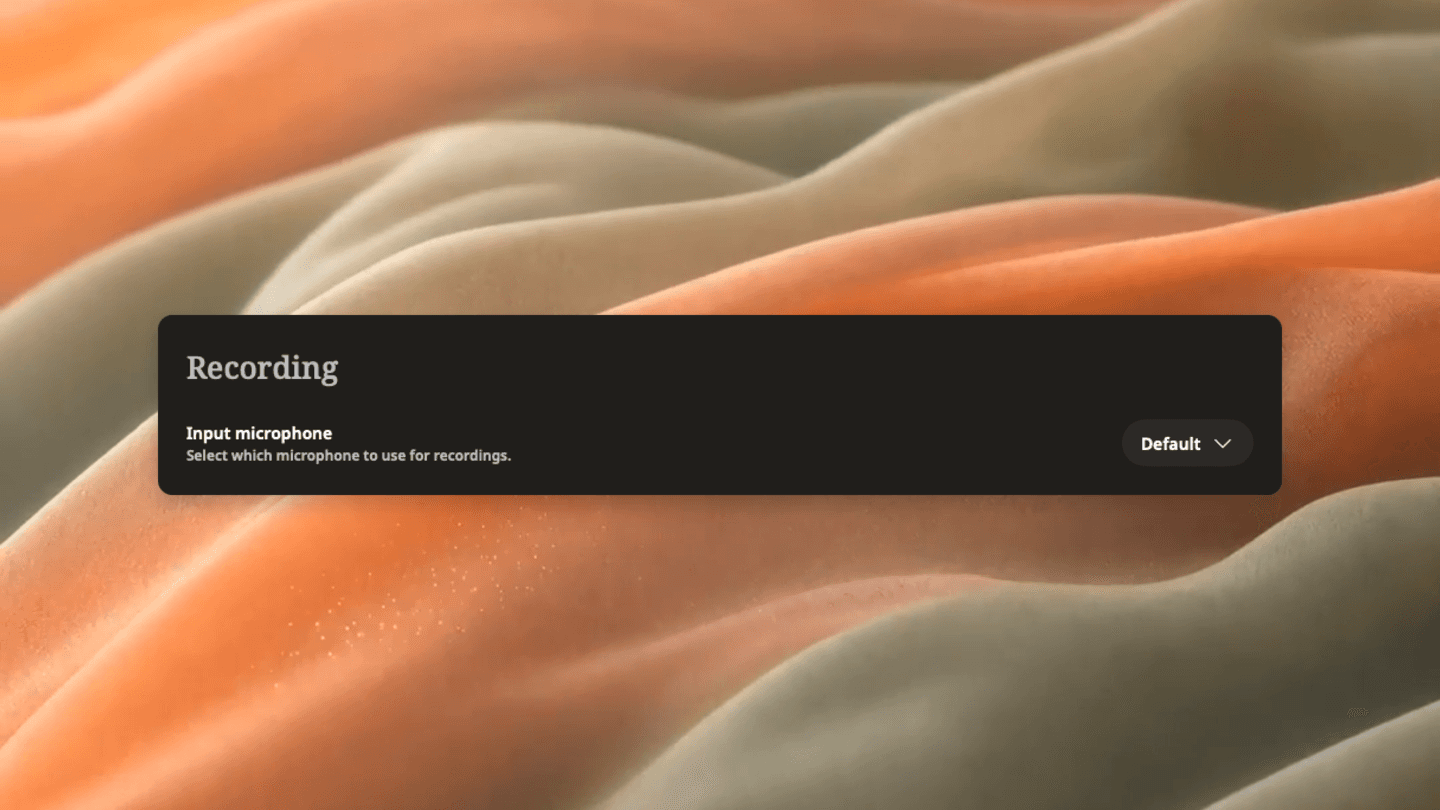
The screenshot shows the genuine microphone-selection control. Treat a default-device choice as something to verify after connecting a headset, display or audio interface. Check the actual device available in your current setup and make a short recording using your intended call arrangement.
Tell participants before recording and follow the recording requirements that apply to your situation. During the test, capture speech from the people you need, stop recording and replay the saved result. Check clarity, duplication and missing words before relying on the transcript or notes. A plausible transcript can conceal an unclear passage rather than establish that the audio was good.
If a passage is difficult to understand, keep its timestamp and check the source. Ask the speaker to confirm important details when necessary. Our guide to correcting audio-transcription errors explains how to keep uncertain wording separate from verified corrections.
7. Treat a reverberant room as a separate problem
A room can make speech sound distant or washed out even when no electronic return path exists. If headphones and a single audio connection do not change the roominess in a microphone-only recording, compare a closer speaking position and a different recording location.
Keep the comparison simple: use the same short passage and normal speaking level, change one aspect of placement, then listen back. Follow the microphone manufacturer’s placement guidance. Moving closer can help the intended voice stand out, but speaking too close or directly into an unsuitable microphone can introduce other problems.
Choose a quieter, less reflective space when possible. Do not assume an expensive microphone can compensate for every room. For an important interview, a short location test is more useful than discovering during transcription that speech is difficult to distinguish.
Can you remove echo from an existing recording?
Sometimes processing can make a recording easier to listen to, but it cannot guarantee recovery of every obscured word. Preserve the original and work on a copy. If you have separately recorded sources or duplicate tracks, fixing the routing or edit may be more useful than applying a general repair effect.
Try any repair on a short representative section first. Compare speech intelligibility before and after at similar listening levels. Check quiet words, overlapping speech and consonants, not just whether the background sounds less roomy. Reject a result that sounds cleaner but makes the actual words less reliable.
Do not use an AI-generated transcript as proof that a repair recovered the original wording. If a detail matters and remains uncertain, seek another source or confirmation. For irreplaceable material that needs specialist restoration, provide an audio professional with the original and a clear description of the problem, subject to your privacy and sharing requirements.
Confirm the fix before the next important call
A useful final check has three parts: you can hear the other participant clearly, they can hear you without a repeated voice, and the saved test contains the intended speakers without unwanted duplication. Repeat the test after reconnecting the devices you normally use.
Record the working input, output, app settings and any monitoring choices. If the problem returns, that gives you a baseline to compare instead of starting from memory. If it persists even in a simple setup, contact the relevant app or device support team with the versions, selected devices, reproducible steps and a short non-private test sample. Avoid sharing real meeting content merely to demonstrate an audio fault.