Microphone sounds muffled? Find the cause before changing your setup

Dylan de Heer

If your microphone sounds muffled, first check whether the problem is in the recording or in the device playing it back. Make a short recording, listen through a second output, then check the selected microphone, its position and any voice processing. Change one thing at a time and compare the same spoken sentence. This gives you a useful diagnosis before you replace equipment or apply effects.
“Muffled” can describe several different problems: a dull voice, excessive bass, missing consonants, a distant recording or the reduced quality of a Bluetooth headset during a call. The checks below focus on speech recordings and meetings, with a specific branch for Mac users. They are diagnostic steps, not a promise that every damaged recording can be repaired.
First identify what you are hearing
Listen to a short section at a comfortable volume. Ask which description fits best:
Dull or covered: the voice is audible, but words lack definition, as though the microphone were behind something.
Boomy: low sounds dominate, particularly when the speaker moves close to the microphone.
Distant or roomy: the room seems louder than the direct voice.
Watery or interrupted: parts of words appear to disappear or change as the person speaks.
Distorted: louder syllables crackle or break up.
Repeated: a delayed version of the voice follows the original.
These descriptions can overlap. However, a repeated voice needs an echo diagnosis, while harsh peaks may need the audio clipping checks. Increasing the recording volume is not a reliable answer to every dull-sounding voice.
Before changing settings, save the original recording. For the following checks, use a new test containing only your own speech. Avoid experimenting during an important meeting or using a private conversation as a support sample.
1. Separate a recording problem from a playback problem
Record the same ordinary sentence for around ten seconds. Include a quiet phrase, a normal phrase and a short pause. Keep your position and speaking volume steady. Then stop recording and listen.
Play that exact file through a second output: for example, switch from Bluetooth headphones to your Mac's speakers or to wired headphones. Do not make another recording yet. The purpose is to hold the file constant while changing only the listening path.
If the existing file becomes clear, investigate the original output device or its current mode. The microphone may have captured acceptable audio all along. If the file remains dull on both outputs, continue with the input checks. This comparison narrows the problem; it does not by itself identify a broken component.
The Bluetooth check on a Mac
Apple explains that using a Bluetooth headset's microphone can switch the connection into a mode for simultaneous speaking and listening, reducing playback quality. Its recommended checks include closing apps using that microphone, closing Sound settings, and reselecting the headphones after briefly selecting the internal speakers. Follow Apple's Bluetooth audio guidance after saving your work and ending any active call.
This is especially useful when music sounds normal before a call but suddenly becomes dull when a meeting app opens. Do not assume that this playback change proves the saved microphone track is damaged. Test the file separately.
For a new test, you can also compare a built-in or wired microphone with the headset microphone, while keeping the listening device consistent. Check the actual selected input in the recording app. Connecting a headset and selecting it as an output does not tell you which microphone the app is using.
2. Confirm which microphone is recording
A laptop microphone, webcam microphone, monitor microphone and headset can all be available at once. A clear microphone near your mouth does not help if the recording is coming from a device across the desk.
Open the recording app's input selector and note the selected device. If it uses a system default, check that default too. Say the test sentence while watching the input level, if one is available. Then select the intended microphone explicitly and make another short recording.
Keep a simple note such as “built-in microphone, normal seat position” or “USB microphone, front facing me”. This prevents several similar tests becoming impossible to compare. Do not tap, blow into or strike the microphone to identify it; a short spoken test is enough.
In Weeve, the recording preferences include an Input microphone control. Check it before your test, particularly after connecting or disconnecting audio equipment. Recheck the active route after a device change rather than assuming a previously saved preference describes the current input.
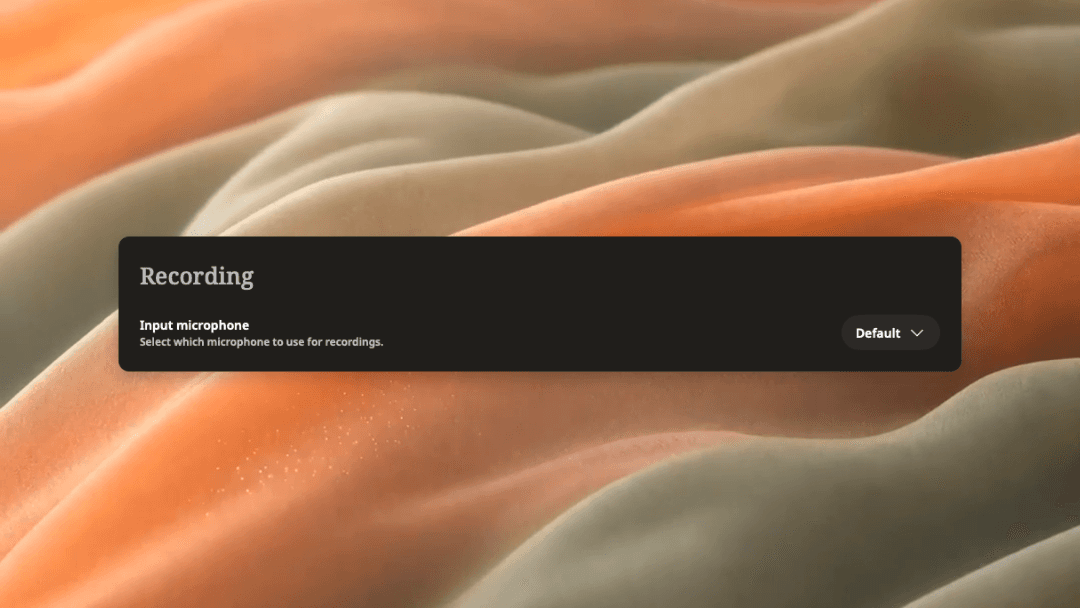
Genuine Weeve interface capture. The selector shown is an example state; choose the device available in your own setup.
Expected result: the app records from the device you intended, and the comparison reveals whether the previous source was responsible for the dull sound. If there is no signal at all, investigate device availability, mute controls and microphone access before treating the issue as muffling.
3. Check the microphone's opening, direction and distance
Look for a simple physical explanation. A laptop may be partly covered by a sleeve or stand. A headset boom may point away from the mouth. A desk microphone may be facing backwards or be designed to receive speech from its side rather than its top.
Use the microphone manufacturer's instructions to identify its speaking side and normal working position. Remove an accidental obstruction without dismantling the device. Do not push objects into a grille, remove a built-in protective layer or use cleaning fluid as a troubleshooting shortcut.
Make two controlled tests: one in the recommended position, then another with a modest change in distance. Keep the input and software settings unchanged. Compare word clarity as well as volume. Louder audio can initially seem better even when it is still dull.
Microphone placement and pickup pattern affect the result. Editors Keys describes the effects of distance, angle and directional patterns in its microphone placement guide. Use those principles as a starting point, then follow the instructions for your particular model rather than applying one distance to every microphone.
Expected result: if repositioning consistently restores clarity, keep that position and retest it in the real meeting setup. If only moving extremely close makes speech audible, return to the input and level checks; do not assume that position is the final solution.
4. Compare the local recording with the affected app
If a microphone sounds clear in a simple local recording but dull in one meeting or communication app, focus on the difference between those paths.
Check that both apps selected the same input. Then inspect any available noise suppression, voice isolation, automatic level or enhancement controls in the affected app. Note the original setting before changing it. Make a short test with one optional processing feature changed, listen, and restore it if the result is worse.
Do not disable every feature at once. A result that changes after five simultaneous adjustments gives you no clear explanation. Also avoid importing instructions for a different operating system or app version simply because the symptom has the same name.
If only the other participant hears the problem, compare your local test with a short, consented call test. Ask whether words are dull, distorted or missing. A local microphone test cannot prove the quality of the entire call path. Conversely, one poor call does not prove the microphone itself has failed.
Expected result: you can identify whether the problem follows the physical input or appears only in a particular app or call. Keep that distinction when contacting support.
5. Simplify the connection before replacing hardware
Save work and stop recording before reconnecting equipment. For a USB microphone, compare the current connection with another compatible port or a direct connection, where the device supports it. Use a known compatible cable if one is already available. Change one component and repeat the same test.
For an interface or a more complex setup, check the manufacturer's routing and input instructions. Avoid changing unfamiliar electrical or power settings merely to see what happens. If the problem is isolated to one device across supported connections and apps, its manufacturer is the right escalation point.
Buying a new microphone should follow the diagnosis. A new microphone will not resolve listening through the wrong output mode or selecting the wrong input in an app.
Confirm the improvement in your actual workflow
A useful final test uses the same microphone, app, seating position and output you plan to use. Include normal speech and a few quieter words. Stop recording, listen back, and compare it with the saved baseline at a similar playback level.
Consider the issue resolved when the improvement is repeatable and speech remains intelligible in that setup. Keep a note of the input and the one change that helped. Recheck after reconnecting a headset or changing desks.
If you use transcription, review the audio first and the text second. A plausible transcript is not proof that every word was recorded clearly. For text-specific problems after the audio checks, use the separate guide to fixing transcription errors.
What if an important recording is already muffled?
Preserve the original and work on a copy. First replay it through a known-good output: that may change what you hear without touching the file. If the source itself is unclear, treat any enhancement as an aid to listening, not evidence that missing words have been recovered accurately.
For an uncertain name, number or commitment, return to the surrounding context and ask the speaker to confirm it where practical. Mark unresolved passages rather than turning a guess into an exact quotation. The standard for a useful meeting record is what the source supports, not how fluent a generated summary sounds.
When escalating, provide the device model, operating system and app versions, selected input, the comparison that reproduced the problem, and a short non-sensitive test file. That gives support a concrete starting point without exposing the meeting you were trying to protect.