Word dictation not working on Mac? Diagnose the cause step by step

Dylan de Heer

If dictation is not working in Word on your Mac, first identify which dictation tool you started. Word's Home > Dictate, macOS Dictation and a separate app such as Weeve have different controls and permissions. Then test a blank, editable document with a short sentence. That separates a document problem from a microphone, account or speech-service problem.
Work through the checks below in order, changing one thing at a time. Save your document before restarting anything. You should finish with either a working repeatable test or a specific description of the remaining failure for support.
Identify the tool and the symptom
Clicking Home > Dictate starts Microsoft's Word feature. Pressing a shortcut configured in macOS can start Apple's Dictation. A shortcut configured in another app starts that app's input workflow. Seeing a microphone somewhere on the screen does not tell you which service is handling the speech.
For this guide, start Word dictation from the ribbon so that the test is unambiguous. Stop any other dictation session first. If you actually want help with Apple's feature across several apps, use the separate Mac dictation troubleshooting guide.
Write down the exact symptom before changing settings:
The Dictate button is missing: check access to the feature and the signed-in account.
The button is greyed out: check whether the document can be edited.
Word reports no microphone or no access: check the input device and the permission for the app you are using.
Word is listening but no words appear: test the microphone, the document insertion point and the connection.
Words appear but are wrong: check language and recording conditions before treating it as a connection failure.
Dictation works briefly and then stops: note whether it stops listening, displays an error, or keeps listening without inserting text.
Those distinctions matter. A missing button cannot be fixed by speaking louder, and a read-only document will not become editable because you choose another microphone.
1. Establish a clean document test
Open a new blank document in the desktop Word app. Click in the main document body and type a few words manually. If typing does not work, resolve the editing or focus issue before testing speech.
Delete that test text, choose Home > Dictate, wait for it to show that it is listening, and say a simple sentence such as “This is a short test of the microphone.” Stop dictation and inspect the result.
Microsoft documents this ribbon-based starting sequence for Word on Mac. It also states that the feature needs a microphone and a reliable internet connection. See Microsoft's Word dictation instructions.
If the blank document works but the original does not, return to the original and check its editing state and insertion point. Test in the normal body rather than a comment, search box or unusual embedded object. Do not overwrite the original to test a theory; use a copy if you need to experiment with its structure.
If the blank document also fails, keep it open as your test document. Reusing the same sentence and document makes the effect of each change easier to judge.
2. If Dictate is missing, check the account and feature access
Check which account Word is signed into, especially if you use both a personal account and a work or university account. Microsoft currently describes Word's Dictate feature as available to Microsoft 365 subscribers. Having Word installed is therefore not, on its own, enough to establish access to that feature. Microsoft's availability guidance.
Confirm the account's entitlement through your normal account or organisation process. Do not purchase a second subscription as a troubleshooting step before checking the one you already have.
On a managed Mac, ask your administrator whether the expected account and connected features are available to you. A restriction needs an explanation from the organisation; it is not a reason to bypass its controls or move work into an unapproved account.
Check for Word updates through the update route used by your installation, after saving your work. Record the version you were using if the feature disappeared after an update. If account access appears correct but the button remains missing, that is useful evidence for Microsoft or your administrator.
3. If Dictate is greyed out, verify editing access
Try typing into the same document location. Check whether the file is open for viewing, protected, or otherwise not editable. Microsoft's troubleshooting guidance specifically calls out a read-only state when Dictate is greyed out. Word troubleshooting guidance.
A new blank document is the useful comparison here. If Dictate is available there, the original document's state deserves investigation. Ask the owner for the appropriate editing access where necessary. Do not remove restrictions you are not authorised to change.
Once normal typing works, repeat the short dictation test. This confirms that you are testing speech input into an editable target, rather than two unrelated problems at once.
4. Check that the Mac is receiving the intended microphone
Open System Settings > Sound > Input and select the microphone you intend to use. Speak at a normal level and check the input response. If you use a headset, check its physical mute control and connection as well as the selected device.
Microsoft recommends testing the microphone, checking its input settings and adjusting the input level when dictation cannot hear you. Its Mac instructions use the older “System Preferences” name; on newer macOS versions, look in System Settings. Microsoft's microphone troubleshooting steps.
For a practical comparison, try the built-in microphone if one is available, then return to the same blank-document test. If one device works and another fails, focus on the failing device or connection rather than repeatedly changing Word settings.
Keep playback and capture separate in your diagnosis. Hearing other people through headphones proves that audio output works. It does not establish that the microphone is selected or unmuted.
If a short recording made with the same microphone is silent or badly distorted too, investigate the capture setup first. If that recording sounds clear while Word still fails, you have narrowed the problem; you have not yet proved that every permission or service involved in Word is working.
5. Grant microphone access to the right app
On current macOS versions, open System Settings > Privacy & Security > Microphone. Check the permission for Microsoft Word when using the desktop app. For Word in a browser, check the browser's macOS permission and the website's microphone permission.
Apple documents microphone access as a per-app control. Enabling it for one app does not grant it to every other app. Apple's microphone permission instructions.
If macOS asks you to quit and reopen the app after a permission change, save your document and follow that prompt. Then return to the blank document and try the same sentence.
For a browser test, note which browser and site you are authorising. A permission granted in one browser does not establish the state in another. If a work policy prevents you from changing the setting, ask your administrator rather than repeatedly resetting permissions.
If Word is absent from the microphone list, try initiating its Dictate feature once and watch for a permission prompt. If none appears, record that observation for support. Avoid deleting system permission databases or running reset commands merely because a generic forum reply suggests them.
6. Separate a connection problem from a document problem
Word's Dictate feature sends speech to Microsoft for text results; it is not an offline speech engine. Microsoft states that its dictation service does not store the audio or transcribed text. That statement describes the service, and should not be confused with where you choose to save or sync the resulting Word document. Microsoft's dictation privacy explanation.
If dictation starts but stalls, record the exact message and whether ordinary internet access is working. A successful website load is a useful basic check, but it does not prove that the relevant speech service is reachable.
On an organisation-managed connection, ask IT to investigate an access problem rather than disabling security tools. If you are permitted to compare another trusted network, repeat the same short test there and record whether the outcome changes.
You can also compare desktop Word with Word in a supported browser, using a blank document and the same authorised account. Treat this as a diagnostic comparison, not proof that the two interfaces have identical settings. If one works, include that fact in your support report.
7. If words appear, check language and meaning
When text appears but contains errors, start with the selected spoken language and the sound reaching the microphone. Check any available dictation language controls rather than assuming the document's visible spelling matches the speech setting.
Move away from competing speech, keep a consistent distance from the microphone, and try a shorter passage. Compare ordinary sentences with names and specialist terms. If common words are reliable but a project name is repeatedly wrong, that is a narrower recognition problem than total dictation failure.
Review negations, numbers, names and dates before using the text. A sentence can be grammatically smooth and still reverse what you meant. Test punctuation commands separately from ordinary speech, using the command list for the tool and language you actually selected.
Do not combine Word, macOS and third-party command instructions. The Mac dictation commands guide covers Apple's workflow; it is not a command reference for every speech-input app.
8. Use a temporary alternative only after checking its boundaries
If you need to keep writing while the Word issue is investigated, an approved separate dictation tool may let you enter text into the document. It does not repair Microsoft's Dictate service or establish why that service failed.
Weeve's dictation workflow on Mac uses its own configured shortcut. Hold the keys to dictate and stop to insert the text. The native settings shown below distinguish that action from starting or stopping a saved recording.
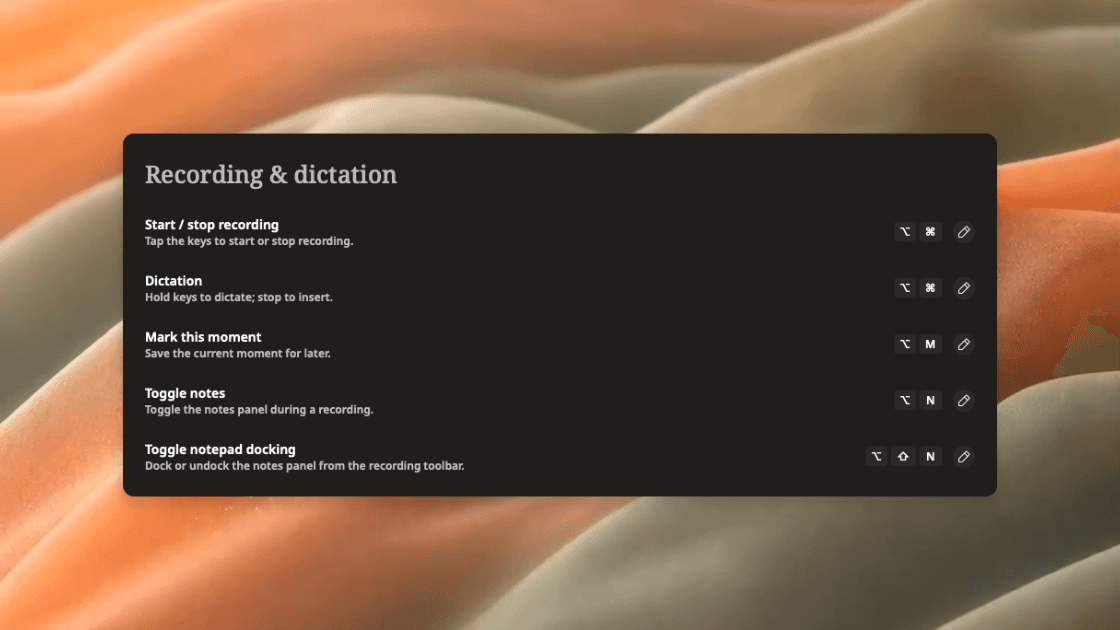
For that route, click an editable paragraph in Word before starting. Weeve requires Accessibility permission for inserting text into another app, in addition to the permissions needed to capture speech. Check Weeve's own setup rather than changing Word's microphone permission and assuming the alternative is configured.
Try one short phrase and confirm where the text appears before dictating anything substantial. Keep the intended document focused. A successful transcription without insertion is a different failure from no captured speech; describe those separately if you need help.
Choose an alternative according to your organisation's rules and the material involved. If you would rather keep an audio account and edit it later, that is a recording-and-transcription workflow, which produces a different working artefact from direct dictation.
Confirm the fix and know when to escalate
After a change appears to help, repeat the short test twice in a blank document, then try a short paragraph in the real document. Check that dictation starts, inserts at the intended location and stops when expected. This is a practical confirmation of your own setup, not an accuracy benchmark.
Record the change that made the difference. “Selected the built-in microphone instead of the disconnected headset” is more useful next time than “restarted things until it worked”. Restore any temporary test choices you no longer need.
If the problem remains, give support a concise report containing:
Your macOS and Word versions, and whether you used desktop Word or a browser.
The exact error or behaviour, including whether Dictate is missing, disabled or listening.
Whether normal typing and dictation work in a new blank document.
The microphone tested and whether it works in a short separate recording.
The permission and account checks completed, and which single changes affected the result.
Use a harmless test sentence in any screenshot or recording you share. Leave out passwords, private document contents and unnecessary account details. Contact Microsoft or your administrator for Word-specific failures, the device supplier for a confirmed hardware fault, or the separate dictation app's support for failures confined to that app.
You can stop troubleshooting once you have a reliable result or a clearly isolated failure. Reinstalling software, resetting permissions and changing several settings at once without new evidence usually makes the cause harder to explain.