Product updates
Best Free Meeting Recording Apps in 2026

Dylan de Heer

The short answer: if you are on a Mac and want the file today, QuickTime Player is already installed and costs nothing. If you want no limits at all, OBS Studio is free and uncapped. If you want notes rather than a raw file, Weeve's free Starter plan records, transcribes and summarises on the Mac itself, capped at 10 recordings in total. For a meeting in the room with only a phone, the recorder already on it is free: Voice Memos on an iPhone, Recorder on a Pixel.
Those are three genuinely different jobs, and most "best free recorder" lists blur them. A recorder gives you a video or audio file. A notetaker gives you a transcript and a summary. Picking the wrong one is why people end up with a folder of recordings they never listen back to.
You want a record of your meetings without adding another paid subscription to the pile. Fair. Plenty of tools capture a call for free in 2026, and a few are genuinely good. The catch is what the word "free" is quietly paying for, and how much work is left once the recording stops.
Most free recorders hand you a raw video or audio file. Useful, but re-watching an hour-long call to find one decision is its own kind of tax. If that file is already sitting on your disk, the MP4 to transcript tool turns it into searchable text in the browser without uploading it anywhere. The tools that turn the recording into notes are rarer, and how they do it, on your own machine or on someone else's server, is the part worth reading closely.
This page compares the best free meeting recorder apps for 2026 on what actually matters: whether the recording stays on your device, whether you get notes or only a video file, and where the free plan quietly stops. You get a quick recommendation map, a feature table, a plain breakdown of each tool, what to use on a phone, and a short guide to picking the right one for how you work.
Best free meeting recorder apps: a quick overview
Weeve: the only free meeting recorder here that also transcribes and summarises, all on your Mac. Nothing is uploaded and no bot joins the call. Best when the conversation itself is confidential.
Zoom local recording: if your calls already run on Zoom, the free Basic plan lets the host record straight to their own computer. A dependable raw capture, with no transcript unless you move to a paid plan, or you use an AI notetaker for Zoom that works on the Mac instead.
QuickTime Player: already on your Mac, already free. The fastest way to capture a screen and a voice with zero install, as long as you do not need notes.
OBS Studio: open source and uncapped. Records anything on screen at any length with no watermark, in exchange for a steeper setup.
Windows Xbox Game Bar: built into Windows, free, and a quick way to capture a call on a PC without installing anything.
Tool | Turns it into notes | Where it runs | Free plan | Platforms |
|---|---|---|---|---|
Weeve | Yes, transcript and summary | On the Mac, fully local | Starter: 10 recordings in total | Mac only |
Zoom local recording | No (transcript is cloud, paid) | On your device | Free Basic plan, host records | Mac, Windows |
QuickTime Player | No | On your Mac | Free with macOS | Mac only |
OBS Studio | No | On your device | Free, open-source | Mac, Windows, Linux |
Windows Game Bar | No | On your device | Free with Windows | Windows only |
The pattern is worth naming up front. Four of these five are recorders: they hand you a video or audio file and leave the notes to you. Weeve is the one that also writes the transcript and the summary, and it does that work on the Mac rather than in the cloud.
What "free" really means for a meeting recorder
Before you trust any free recorder, three questions decide whether it fits your work.
Where the recording is processed. A recorder either keeps the audio on your own machine or sends it to a server. Every tool on this list records locally by default, which is the honest baseline for confidential work. The moment a tool offers to transcribe or summarise in its cloud, though, the recording leaves your device, so read where that step happens before you switch it on.
Whether you get notes or just a file. A raw recording is not the same as a record you can use. QuickTime, OBS, Zoom's local mode, and Game Bar all produce a video or audio file and stop there; turning that into a searchable summary is on you. Weeve is the one that produces the transcript and the summary directly, on the device.
Where the free plan stops. "Free" rarely means unlimited on every axis. One tool caps the number of recordings, another is free only because you host it yourself, a third records freely but keeps transcription behind a paid tier. Read which limit applies before the limit finds you.
Whether the meeting platform itself charges for it. This is the trap most people hit first, because it has nothing to do with the recorder you choose. Zoom includes local recording on the free Basic plan, so a host can save a call without paying anything. Google Meet does not work that way. Google lists Meet recording as a paid Workspace feature, available on Business Standard and Business Plus, Enterprise Standard and Enterprise Plus, Education Plus, and the Essentials editions. A free personal Google account has no recording button at all, and Business Starter does not include one either. If your calls run on Meet and your edition is not on that list, the recorder has to come from outside the platform.
1. Weeve: the free meeting recorder that also writes the notes
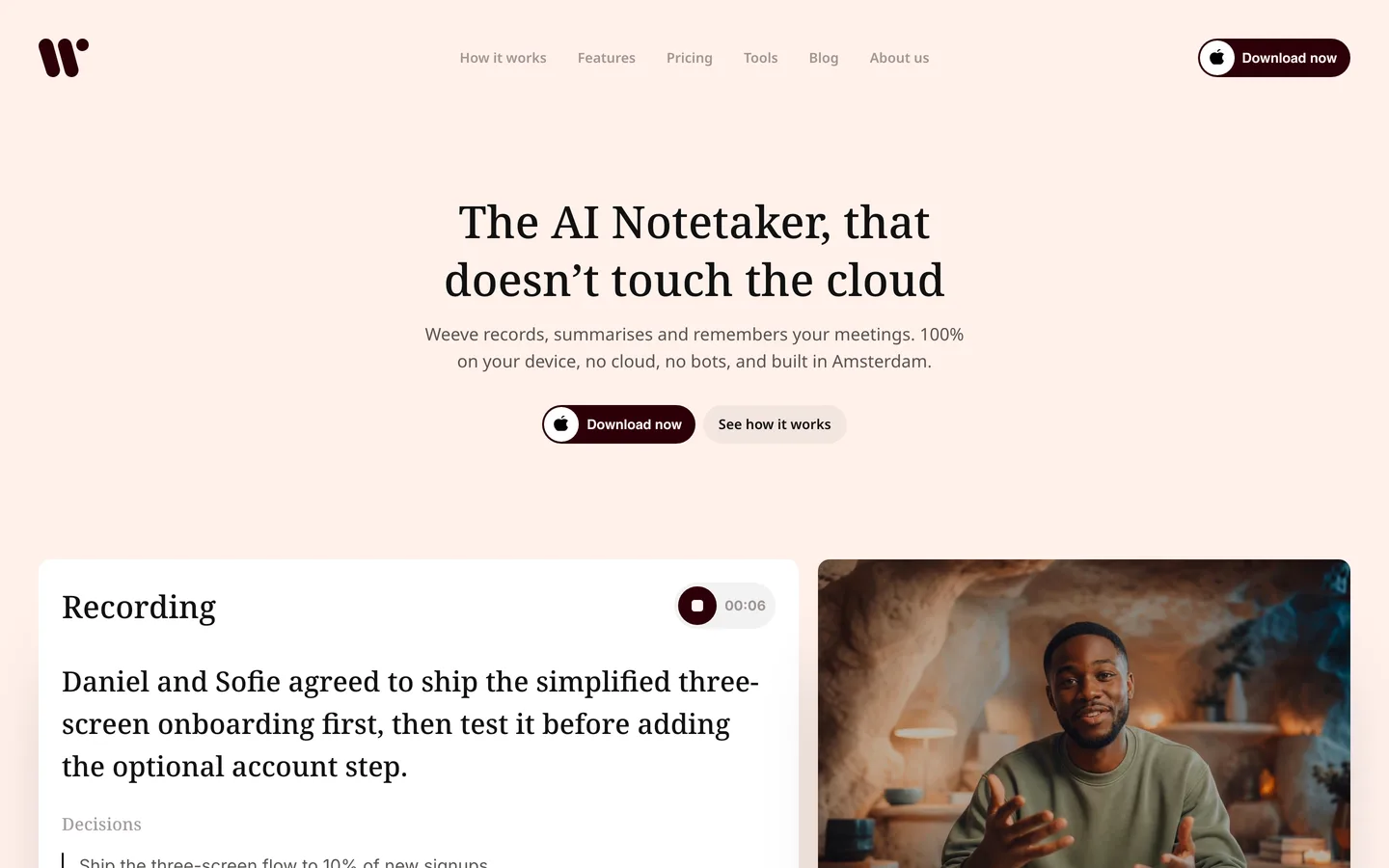
If you record client sessions, case calls, or any conversation you would not forward to a third party, the recorder itself is a privacy decision. That is the problem Weeve is built for. It is a fully local AI notetaker for Mac: the recording, the transcription, and the summary all run on the device, and nothing is uploaded to a server in the core workflow.
The flow is plain. Start Weeve before a call on Zoom, Google Meet, or Microsoft Teams, and it captures the Mac's own audio, so no bot joins and no participant sees an assistant in the room. Local speech recognition and speaker diarisation turn the audio into a transcript, a local model writes the summary, and the whole record stays on your Mac. You can also import an existing MP4 or audio file and transcribe it the same way. Because there is no upload step, there is no cloud library of your recordings and nothing in the pipeline to lock you out.
One honest point on consent: on-device processing keeps the recording in the room, but it does not replace asking. Tell people you are recording. The technology removes the server, not the courtesy. Weeve is built by two founders in Amsterdam and backed by Achmea Impact Ventures, a useful signal if procurement asks who stands behind a tool.
Pricing: Free Starter plan with 10 recordings in total and 2 projects, nothing uploaded. Pro is €12.99 a month excluding VAT for unlimited recordings and projects.
Pros
The recording, transcript, and summary never leave the Mac, which answers the confidentiality question at the architecture level rather than with a policy promise
No bot to explain to a nervous client, and no separate step to turn the recording into notes
Imports older MP4 and audio files and transcribes them locally too
Cons
Mac only today, with no Windows and no mobile app
The free Starter plan caps you at 10 recordings in total, so heavy users will move to Pro
No shared team workspace or cloud sync; this is built for the individual professional
You can download Weeve for Mac and try the free Starter plan. Setup asks you to verify an email address and download the speech model once, after which recording and transcription happen locally. If you never wanted your notes in the cloud in the first place, keeping the whole recording on your own machine is exactly the problem it removes.
2. Zoom local recording: best when your calls already run on Zoom
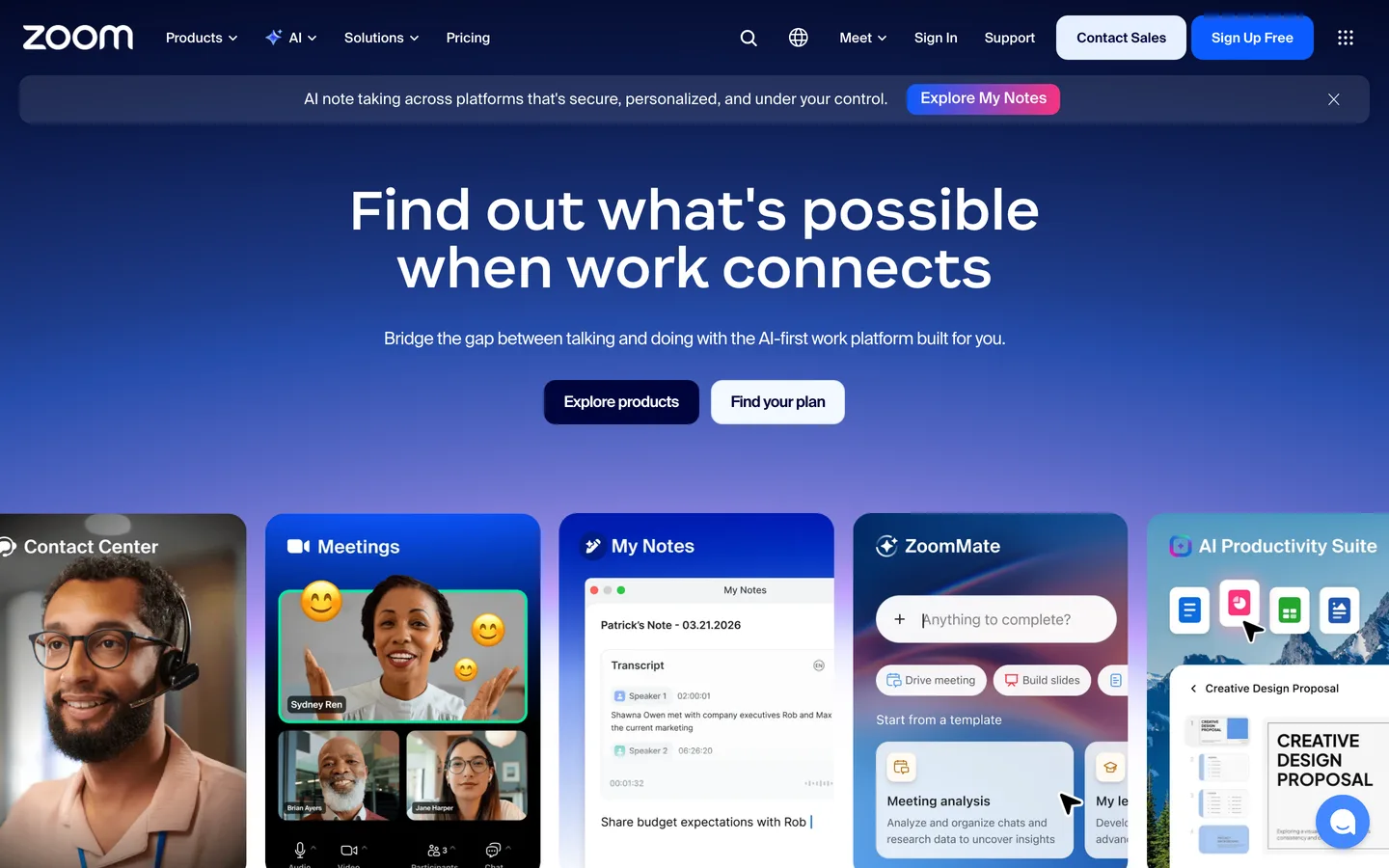
If your meetings are on Zoom, the recorder is already in the app. On the free Basic plan the host can choose "Record on this Computer", and Zoom saves the meeting as a video file on the host's own machine when the call ends. For a straightforward capture of a Zoom call at no cost, it is the path of least resistance.
The limits are worth knowing. Only the host can start a local recording on the free plan, so as a guest you cannot press record. Local recording produces a video file with no transcript and no summary: Zoom's transcripts, whether from cloud recording or the newer in-meeting transcripts, need a paid Pro, Business, or Enterprise plan, and cloud recording stores the recording on Zoom's servers. To pull a transcript from a free local file instead, you can run it through a free audio transcriber that keeps the file on your machine. And because the recording sits only on the host's device, a crash mid-call can leave it incomplete.
Pricing: Local recording is free on the Basic plan. Cloud recording with transcription starts on paid plans.
Pros
No new software; the recorder is built into the Zoom you already use
Records to your own computer, so the file stays with you
Works on both Mac and Windows
Cons
Host only on the free plan; guests cannot record
No transcript or summary unless you move to a paid plan
Captures Zoom calls only, not other apps or in-person conversations
3. QuickTime Player: best free tool already on your Mac
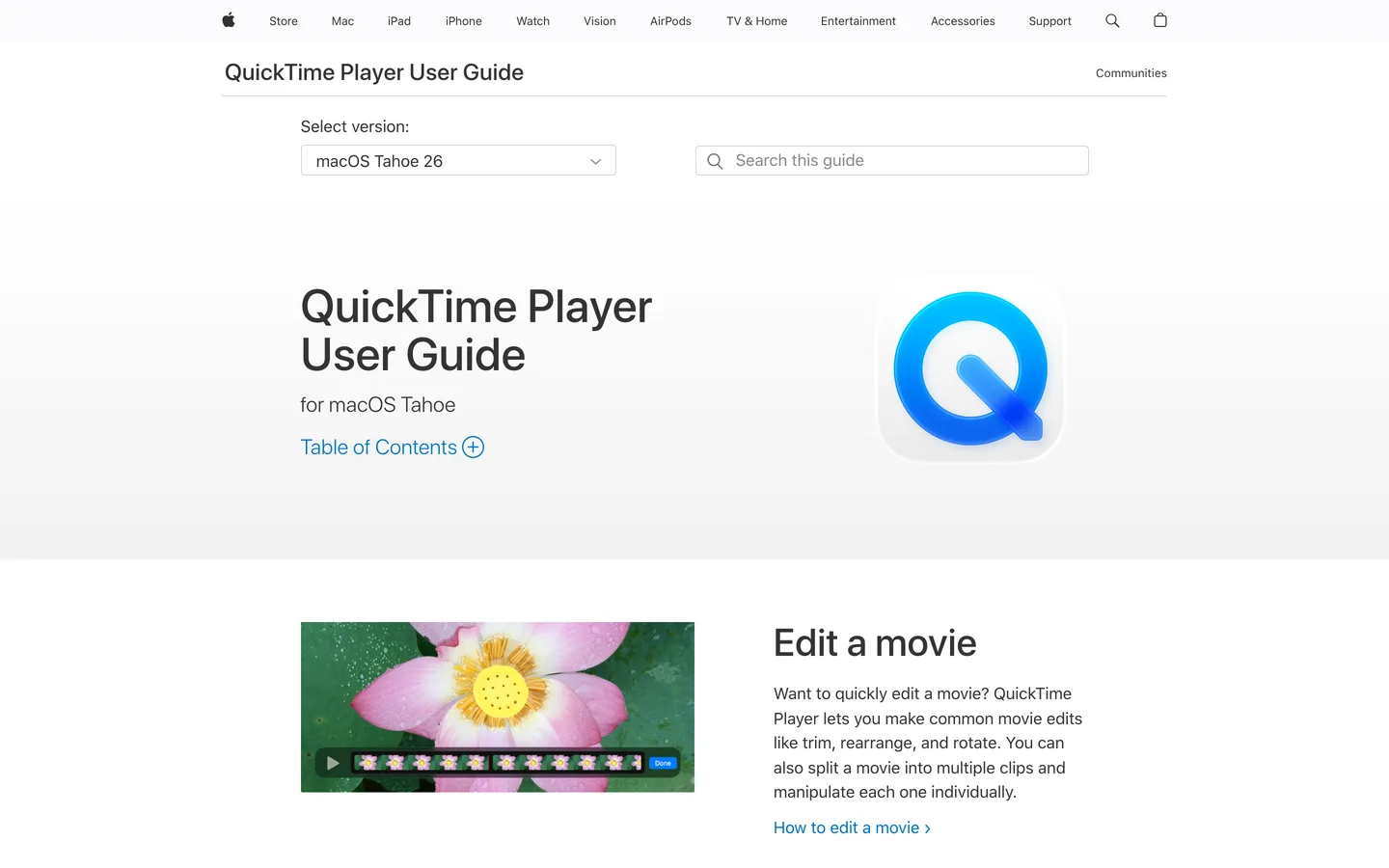
You may not need to install anything. QuickTime Player, which ships with every Mac, records your screen and a microphone for free through File then New Screen Recording. For capturing a call as a plain video with your own voice, it is the fastest zero-cost route there is.
The honest limits are real. QuickTime cannot capture the other side's audio, the system sound, without a free loopback helper such as BlackHole routed in as the input. And it only produces a video file: there is no transcript, no summary, no search. It records the meeting; turning that into notes is on you.
Pricing: Free, included with macOS.
Pros
Already installed and completely free, with no account and no length limit
Nothing leaves the Mac; the file is yours
Simple enough to use on a moment's notice
Cons
No transcript, summary, or search; it is a recorder, not a notetaker
Capturing system audio needs a separate free loopback tool and some setup, the reason a WhatsApp call records with one side missing
Mac only That gap is the reason most people end up pairing a recorder with something that writes. Weeve does both on a Mac, and the audio and the notes stay on the device. The free Starter plan covers 10 recordings in total.
4. OBS Studio: open-source capture with no limits
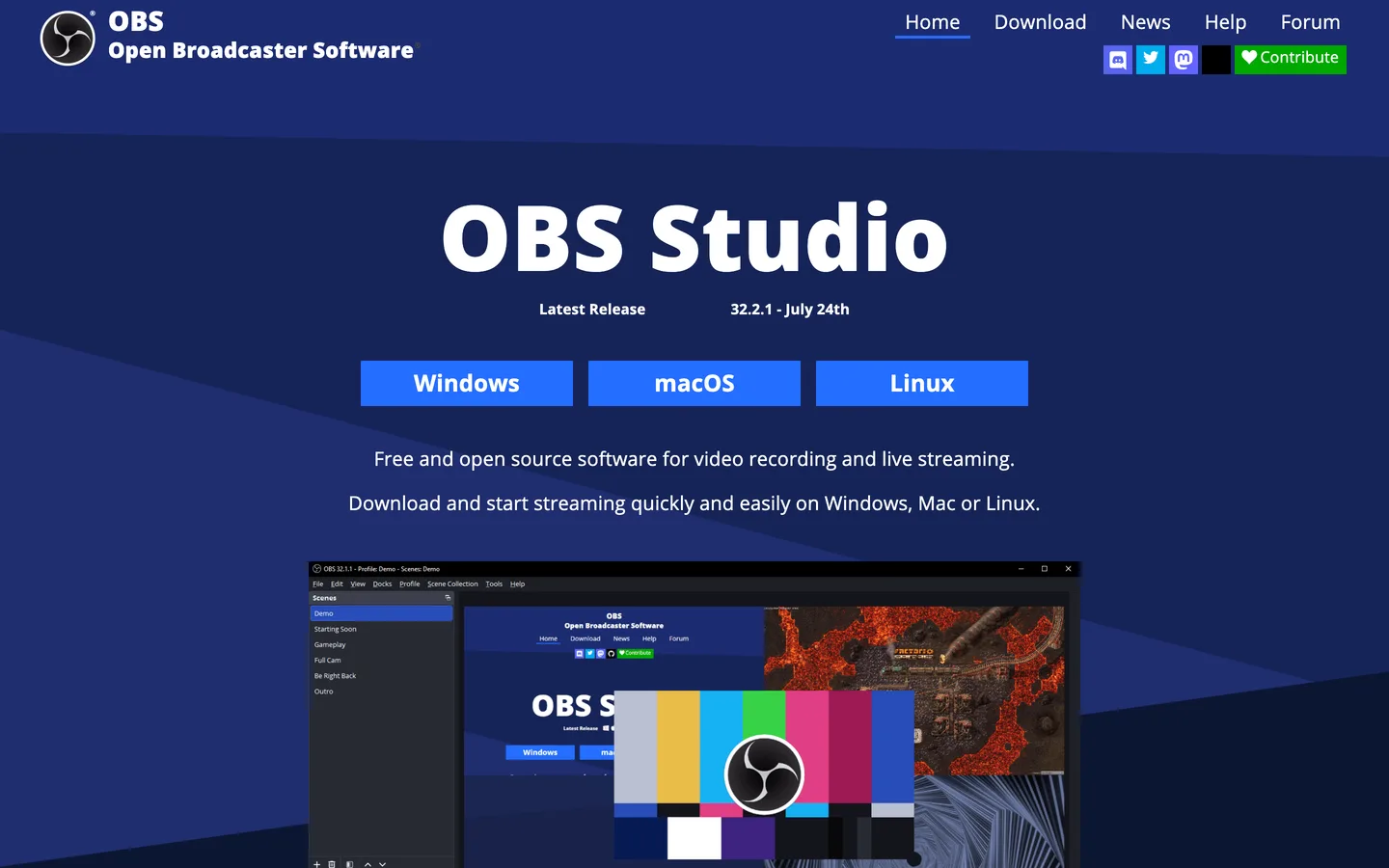
OBS Studio is the free, open-source recorder that streamers and educators reach for, and it records meetings just as well. It runs on Mac, Windows, and Linux, captures screen and system audio, and imposes no time cap, no watermark, and no resolution ceiling. If you want raw recording power for nothing, this is the ceiling-free choice.
The cost is your time. OBS is built for control, so scenes, sources, and audio routing take setup before your first clean recording. And like QuickTime, it gives you a video file rather than notes: there is no transcription or summary in the box.
Pricing: Free and open-source, funded by donations.
Pros
No usage limits of any kind, and no watermark
Cross-platform across Mac, Windows, and Linux
Records high-quality video that stays on your machine
Cons
The setup is the steepest here for a simple meeting recording
No transcription or summary; it is a raw recorder
Overkill if all you want is a quick call captured
5. Windows Xbox Game Bar: best free recorder built into Windows
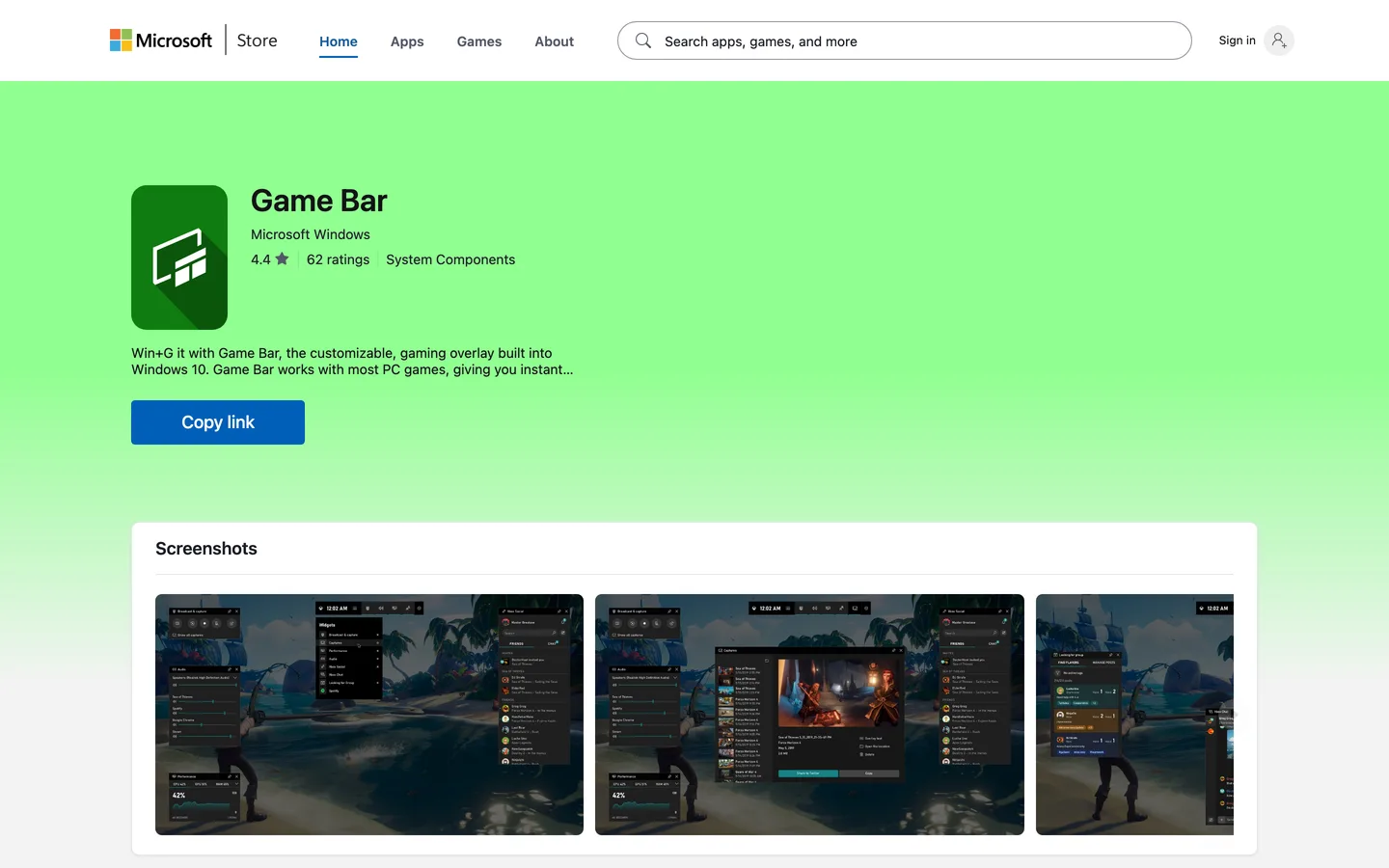
On a PC, you already have a recorder. Xbox Game Bar ships with Windows 11 and 10, opens with Win plus G, and records the screen with system and microphone audio straight to your Videos then Captures folder. For a quick capture of a call on Windows with nothing to install, it is the fastest option.
The catch is what it was built for. Game Bar is designed to record a single app window rather than the whole desktop, so it does not capture the desktop or File Explorer, and switching apps mid-recording can trip it up. Like the other recorders here, it produces a video file with no transcript or summary.
Pricing: Free, built into Windows.
Pros
Already on Windows, with nothing to install and no account
Records system and microphone audio in one file
Quick to start with a keyboard shortcut
Cons
Records a single app window, not the full desktop
No transcript or summary; it is a raw recorder
Windows only
How to record a meeting on your phone for free
For a meeting in a room, the phone in your pocket already has a free recorder. On a laptop, a free online microphone recorder does the same in a browser tab. Either one hears only what its own microphone hears, so it is the wrong tool for the far side of a video call. For calls, use one of the desktop routes above.
iPhone: Voice Memos. Built in and free. On an iPhone 12 or later it also transcribes the recording, in English, Spanish, Portuguese, Italian, French, German, Japanese, Korean, and Simplified and Traditional Chinese, though Apple says the feature is not available in every country or region. You can read the transcript while you record or afterwards. If you need the text on a Mac, how to transcribe voice memos on a Mac covers moving it across.
Pixel: Recorder. Google's Recorder app runs on Pixel 3 and later phones and on Pixel Tablet. It transcribes as it records, and Google says the transcription runs through an on-device service, which discards its copy of the audio once the text is done. The recording itself stays in the app. Pixel 6 and later can label who is speaking, and the app can add an AI summary for recordings between 5 minutes and an hour long, which for some languages needs an internet connection.
Other Android phones. Most come with the maker's own voice recorder app. What it can transcribe, and where that happens, varies by maker, so check before you rely on it for a client meeting.
A phone on the table picks up a small group well and struggles at the far end of a long room. The guide to recording an in-person meeting covers where to put it. Weeve has no phone app, so this is one job it does not do. Whatever you record with, ask everyone first: the guide to recording consent covers where the law draws the line.
Which free meeting recorder is right for you?
If your conversations are confidential by profession
Choose Weeve. If you are a coach, therapist, notary, clinician, or consultant, the recording is only as private as the machine that processes it, and a cloud step puts that recording on a server you would then have to explain to a client or a regulator. Weeve keeps the recording, the transcript, and the summary on your Mac, so there is no cloud processor in the story. If you want the reasoning in full, see how Weeve stays private by default.
If your calls are on Zoom and you just need the video
Use Zoom's own local recording. As the host you can save the call to your computer for free, then handle notes separately. Just remember there is no transcript unless you move to a paid Zoom plan, or you put the saved file through the Zoom recording transcriber, which runs in the browser tab.
If you want a raw recording with no install
Use QuickTime on a Mac for the quickest zero-install capture, or Xbox Game Bar on Windows. For longer sessions with no limits and full control, OBS Studio is the pick on any platform. None of them transcribe, so pair them with a separate step if you want searchable notes. Weeve's free online voice recorder is another no-install option, recording straight in the browser and keeping the audio on your own device. If what you are capturing is a call rather than a note to yourself, the browser recorder for meeting audio takes both sides of it in the tab, with nothing installed and nothing uploaded.
If the meeting is in person and you only have your phone
Use the recorder already on it: Voice Memos on an iPhone, Recorder on a Pixel. Both cost nothing, and both transcribe on supported models.
If you want the notes, not just the recording
Choose Weeve, or read our wider roundup of the best AI note-taking apps to compare tools that turn calls into summaries. The recorders above capture the call; a notetaker saves you the re-watch.
Free is one filter. If your constraint is confidentiality rather than cost, the roundup of private AI meeting assistants compares tools on where the processing happens instead.
FAQ
What is the best free meeting recorder?
There is no single winner, because "best" depends on the trade you can accept. For confidential conversations, and for notes rather than a raw file, Weeve is the best free option that keeps the recording and the summary on your Mac. For a quick capture of a Zoom call, Zoom's own local recording is free for the host. For a raw video with no install, QuickTime is already on your Mac and Xbox Game Bar is already on Windows.
Is there a free meeting recorder that does not use the cloud?
Yes, all five here record on your own device by default. Weeve keeps the transcript and summary local too, as a no-setup Mac app. Zoom's local recording, QuickTime, OBS Studio, and Game Bar are recorders that save a file to your machine without uploading it, though they do not produce notes.
What is the best app to record a meeting?
It depends on the device and on whether you want a file or notes. On a Mac, Weeve's free Starter plan records, transcribes and summarises on the machine itself, with a cap of 10 recordings in total, and QuickTime Player is the zero-install route to a raw file. On Windows, Xbox Game Bar is already installed. OBS Studio is free, open source and uncapped on Mac, Windows and Linux. On a phone, the free answer is the recorder that came with it: Voice Memos on an iPhone, Recorder on a Pixel.
Can I record a work meeting on my phone?
Yes, for a meeting in the room. Voice Memos on an iPhone and Recorder on a Pixel both record for free, and both transcribe on supported models. A phone is a poor way to record a video call, because it only hears what reaches its microphone, so use a desktop recorder for calls. Ask everyone before you start, and check your employer's own policy on recording.
Is there a completely free meeting recording app with no time limit?
Yes. OBS Studio has no time cap, no watermark and no resolution ceiling, and it is free permanently rather than free for a trial. On a Mac, QuickTime Player is also uncapped. Both record only: you get a file, not a transcript. The tools that add notes and summaries are the ones that tend to cap the free tier, Weeve included.
Is there free meeting recording software for Windows?
Yes, and it is already installed. Xbox Game Bar ships with Windows 10 and 11, opens with Win plus G, and records screen with system and microphone audio into your Videos then Captures folder. OBS Studio is the stronger free option if you need control over sources and quality. Weeve is Mac only today, so on Windows the practical free routes are Game Bar, OBS, or Zoom's own local recording.
Is there a free meeting recorder with no bot joining the call?
Yes. None of these send a bot into the participant list. Weeve captures the Mac's own audio, Zoom records inside the app you are already in, and QuickTime, OBS, and Game Bar capture your device's screen and sound directly.
Can I record a meeting on my Mac for free without installing anything?
Yes. QuickTime Player is built into macOS and records your screen with microphone audio through File then New Screen Recording. To capture the other participants' audio you need a free loopback tool such as BlackHole, and QuickTime gives you a video file with no transcript. For notes as well as a recording, Weeve's free Starter plan is the better fit.
Does Google Meet allow recording for free?
No. Google lists Meet recording among its paid Workspace features, on Business Standard and Business Plus, Enterprise Standard and Enterprise Plus, Education Plus, and the Essentials editions. A free personal Google account has no recording button, and Business Starter does not include one either. To capture a Meet call without upgrading, the recorder has to sit outside Meet: QuickTime on a Mac, Xbox Game Bar on Windows, OBS Studio on either, or Weeve's browser recorder, which captures the tab audio with nothing to install. Whichever route you take, tell the other participants before you record and check your organisation's own rules.
Can I record a Zoom meeting for free?
Yes, if you are the host. Zoom's free Basic plan includes local recording, which saves the meeting to your own computer. Zoom's transcripts are a paid feature, so the free route gives you the video without the notes. Weeve also runs a free browser tool for recording a Zoom call with nothing to install.
Do free meeting recorders limit how much I can record?
It varies, so check before you rely on one. Weeve's free Starter plan allows 10 recordings in total. Zoom's local recording, QuickTime, OBS Studio, and Game Bar have no recording cap because they save to your own device, though they record only, without notes.
Is a free meeting recorder safe for confidential meetings?
It depends entirely on where the recording is processed. Local tools that keep audio on your device avoid putting the conversation on a third-party server, which is the core concern for privileged or clinical work. If a tool offers cloud transcription or storage, read the provider's own privacy documentation and check it against your confidentiality obligations first. For file formats and setup questions, Weeve support has the specifics.
Free recording is easy to find. Free recording that stays yours is the harder thing.
If you want both on a Mac, Weeve's free Starter plan records and transcribes 10 recordings in total and keeps the audio and the notes on the device. It needs Apple Silicon and macOS 14.4 or later, and it captures audio rather than video, so for screen capture or anything on Windows, OBS Studio is still the better free tool. On any machine at all, the browser recorder captures a call inside the tab with nothing to install.